LivingKiosk
Ambient displays for the screens around you.
Full-screen channels that refresh themselves and are built to be glanced at, not operated. Put one on a wall tablet, a spare monitor, a TV in the corner, or straight onto your Mac desktop.
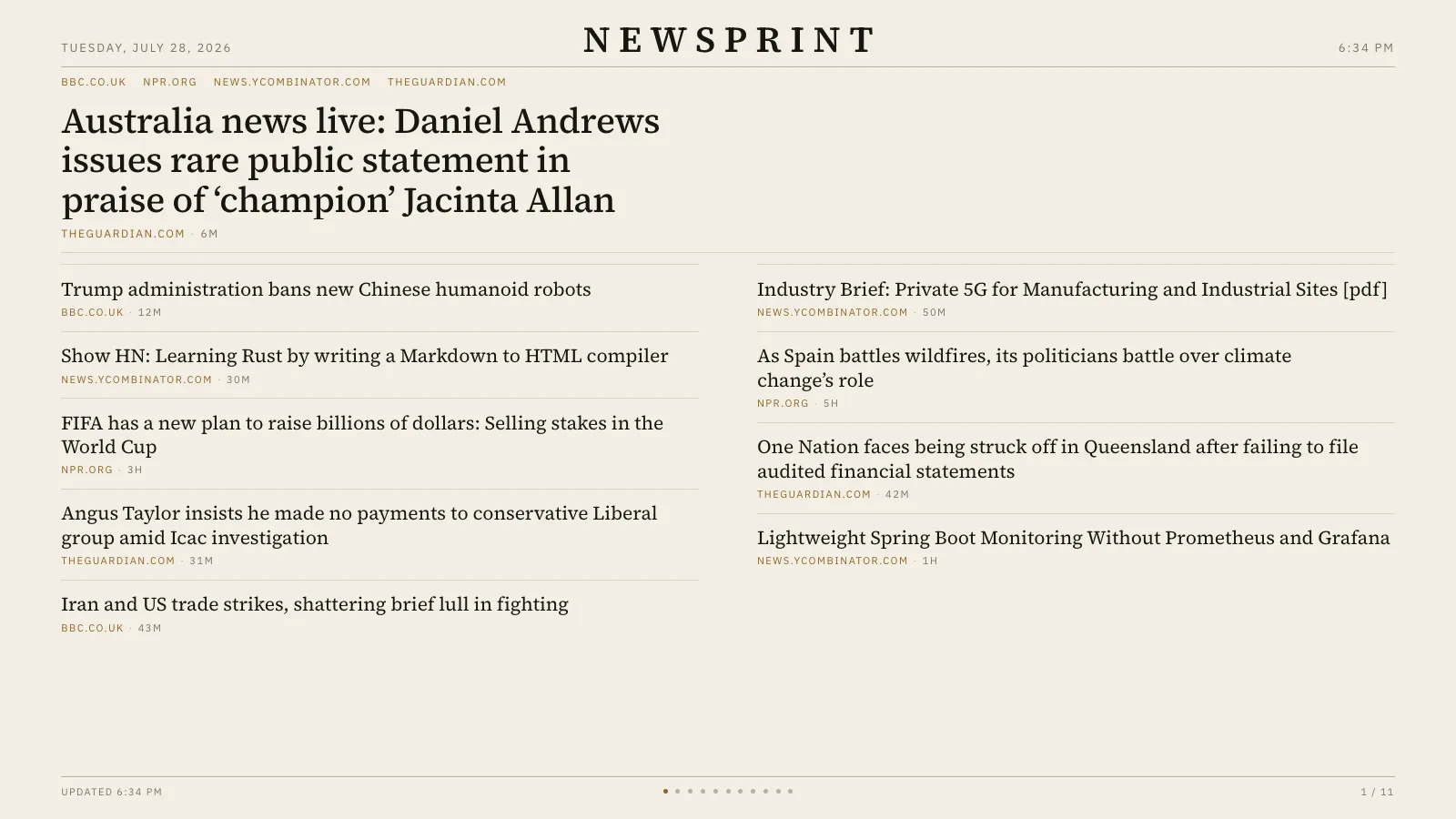
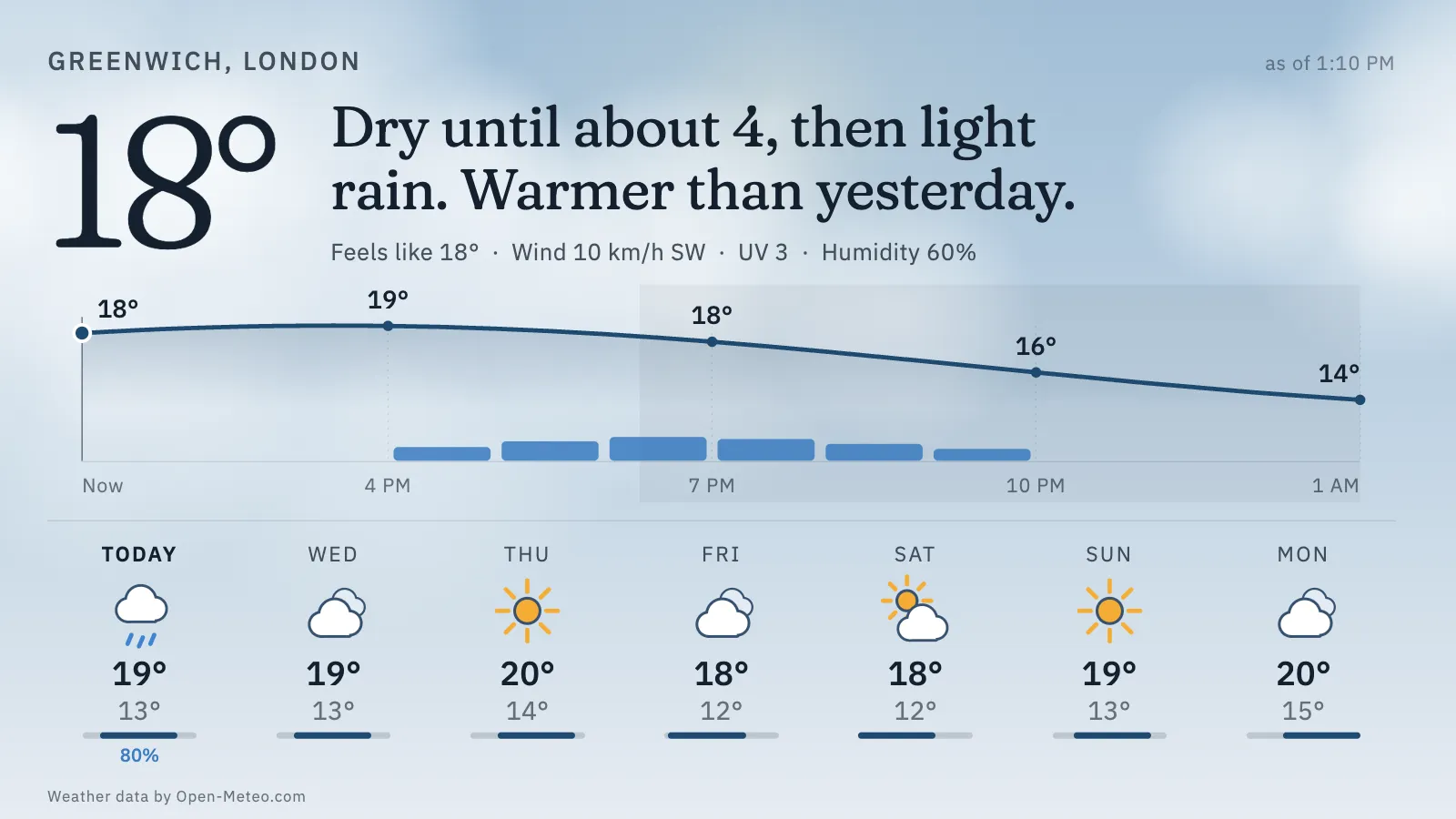
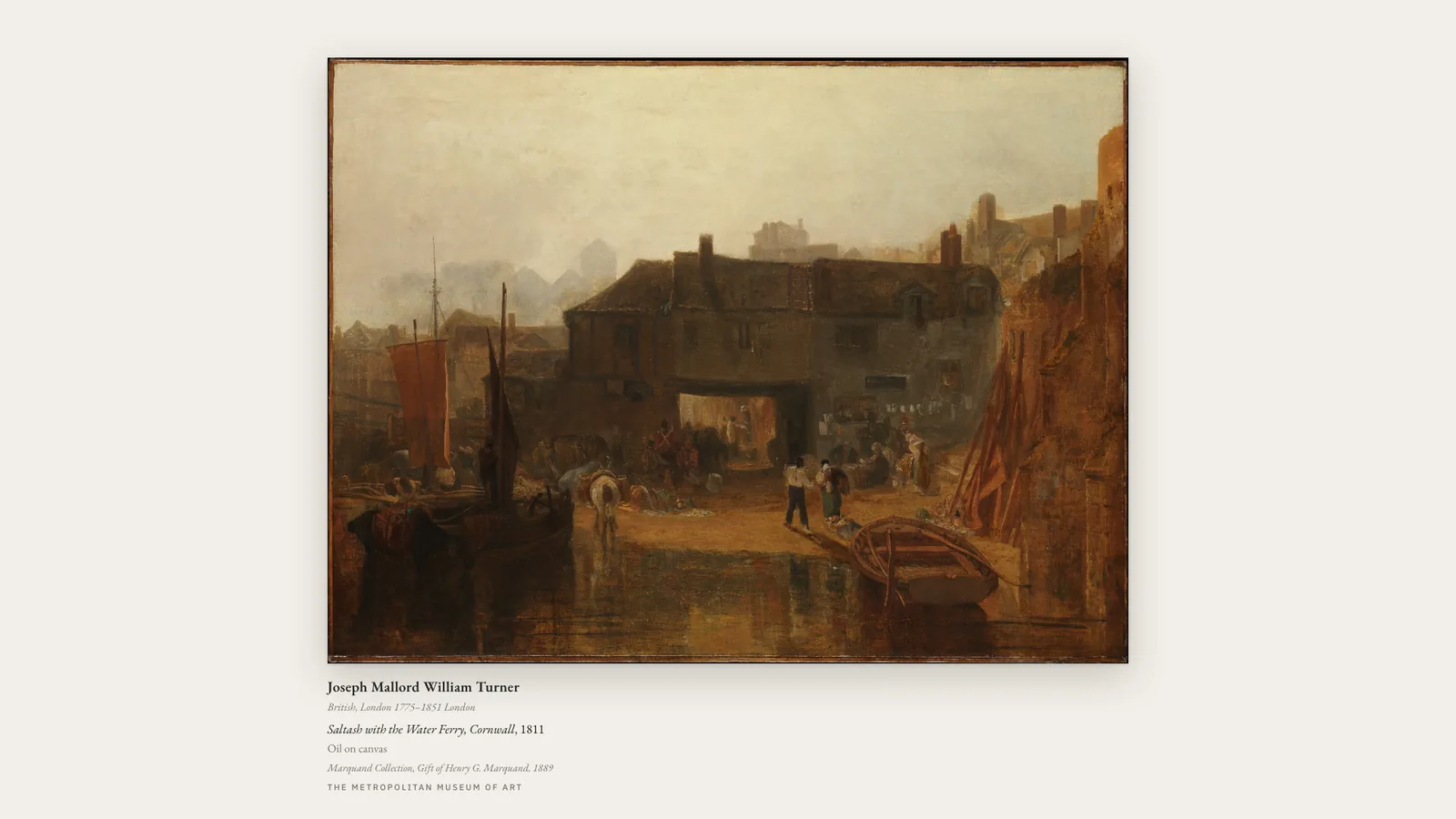
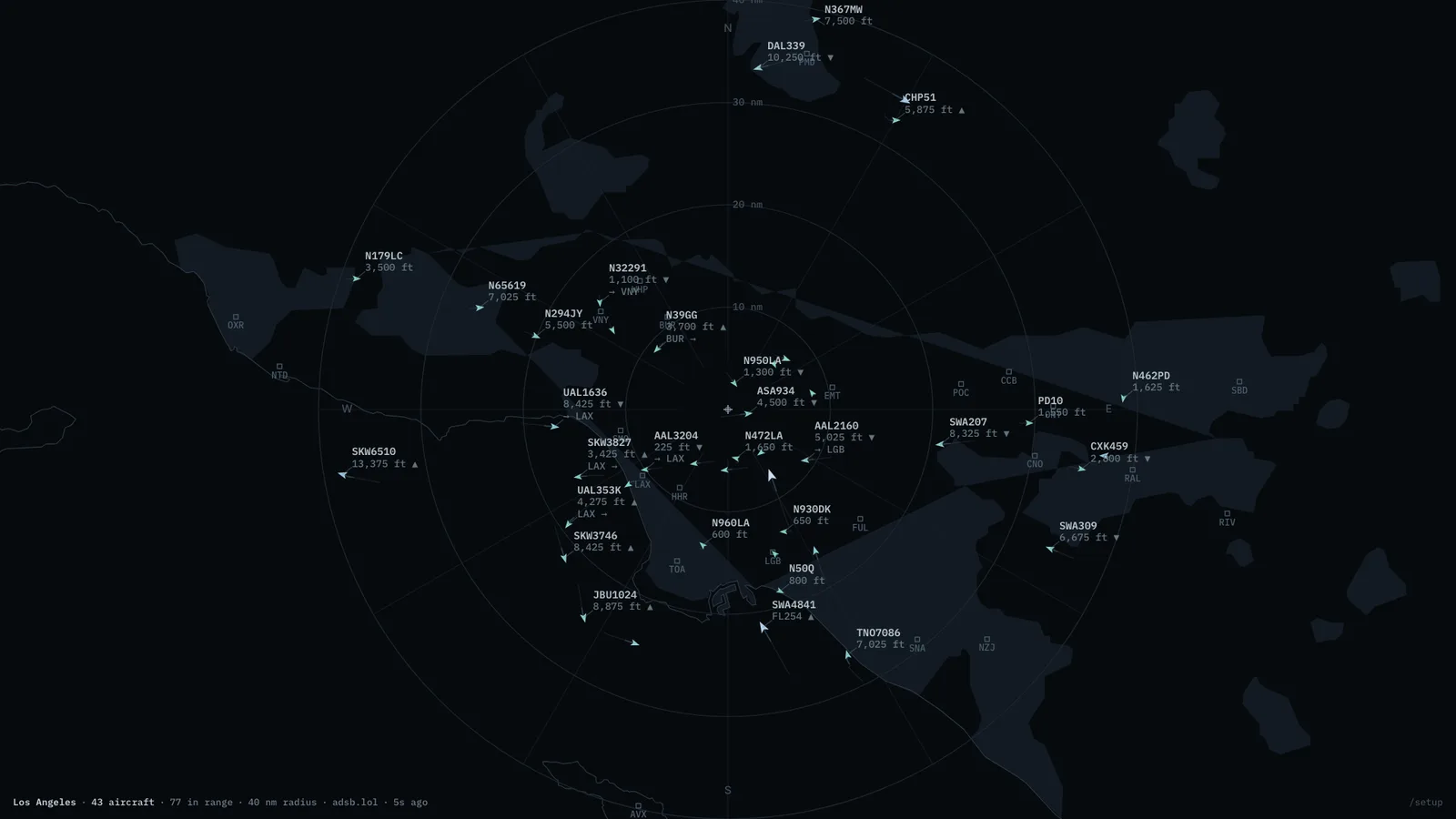

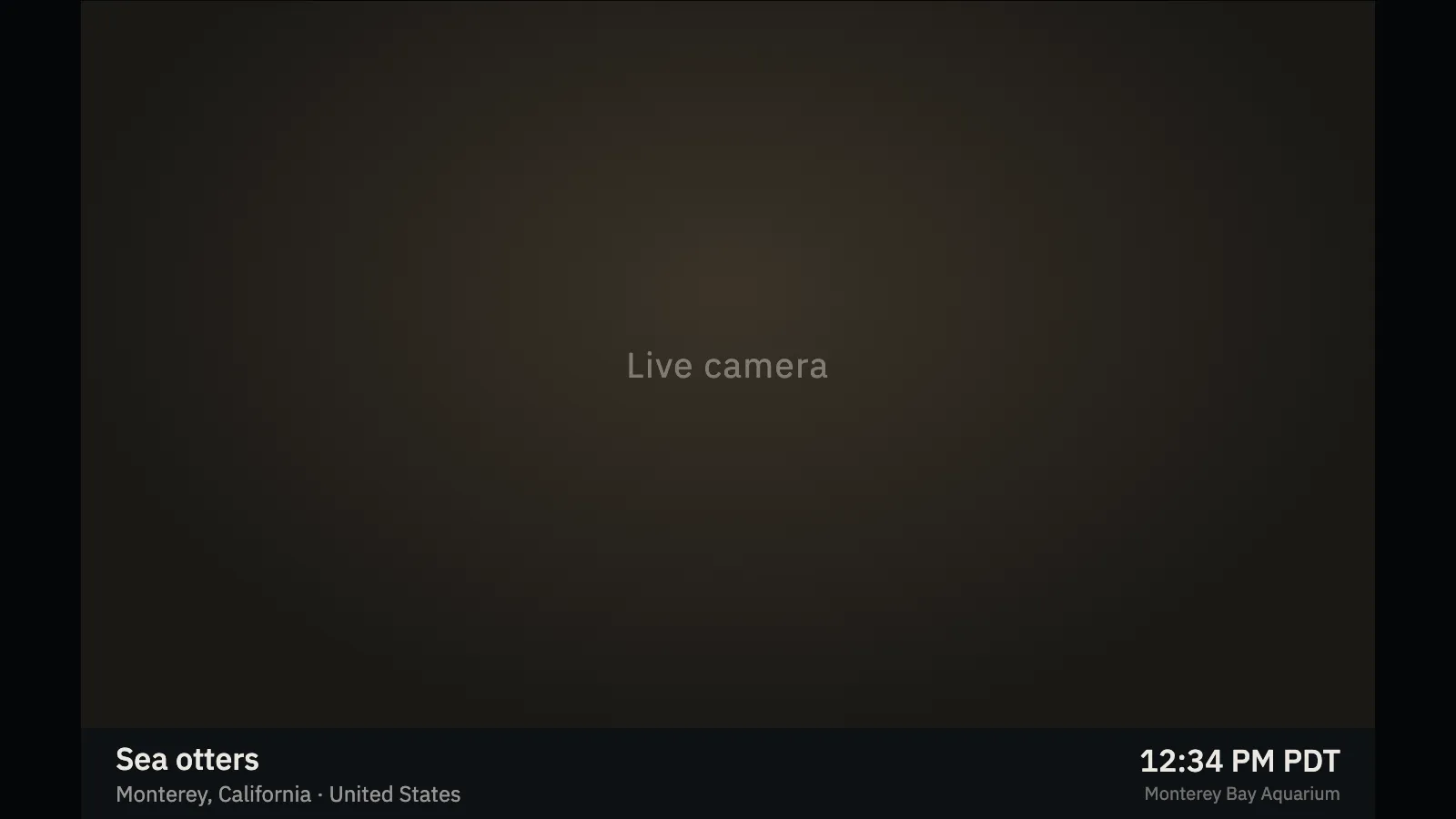
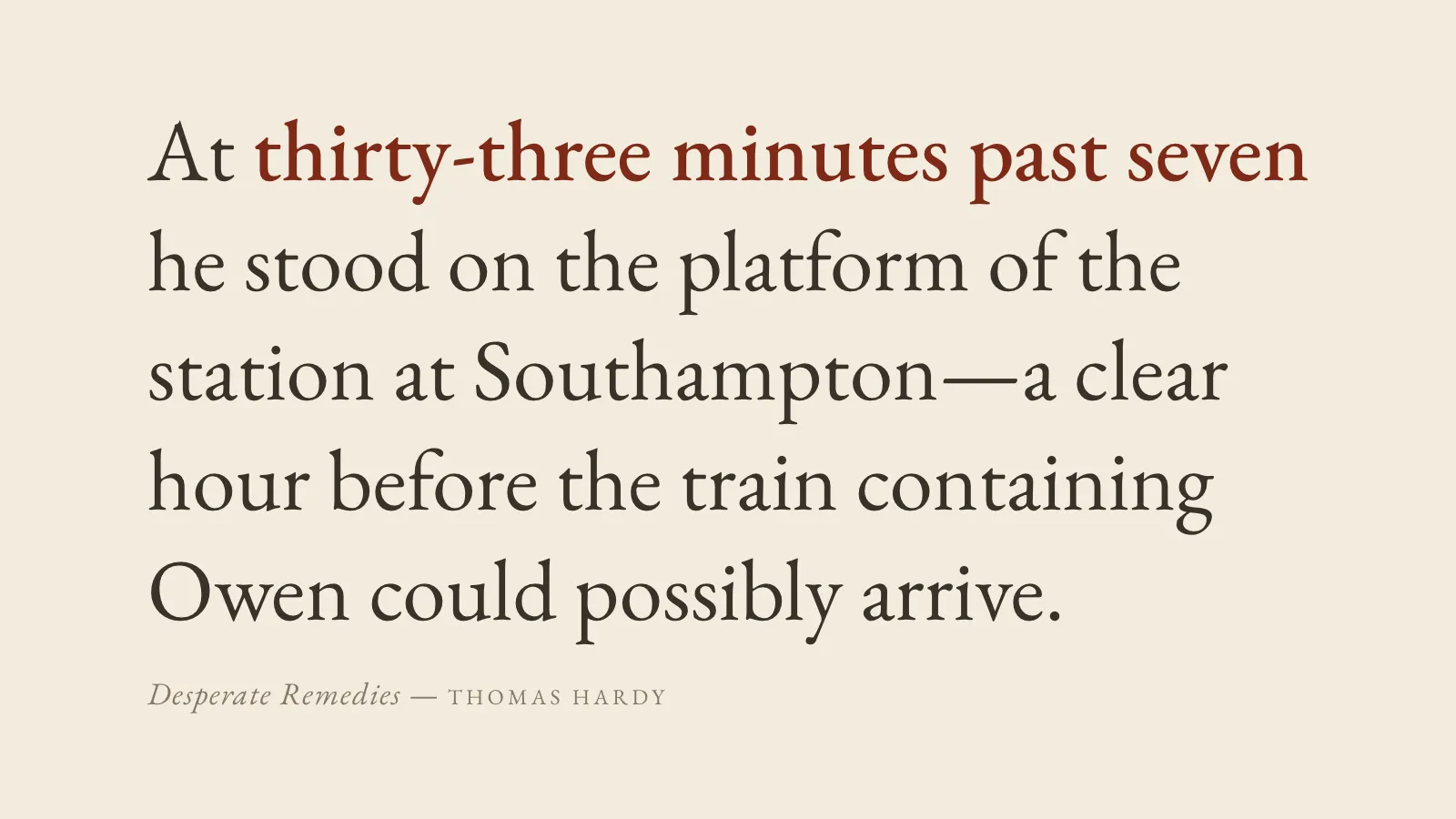

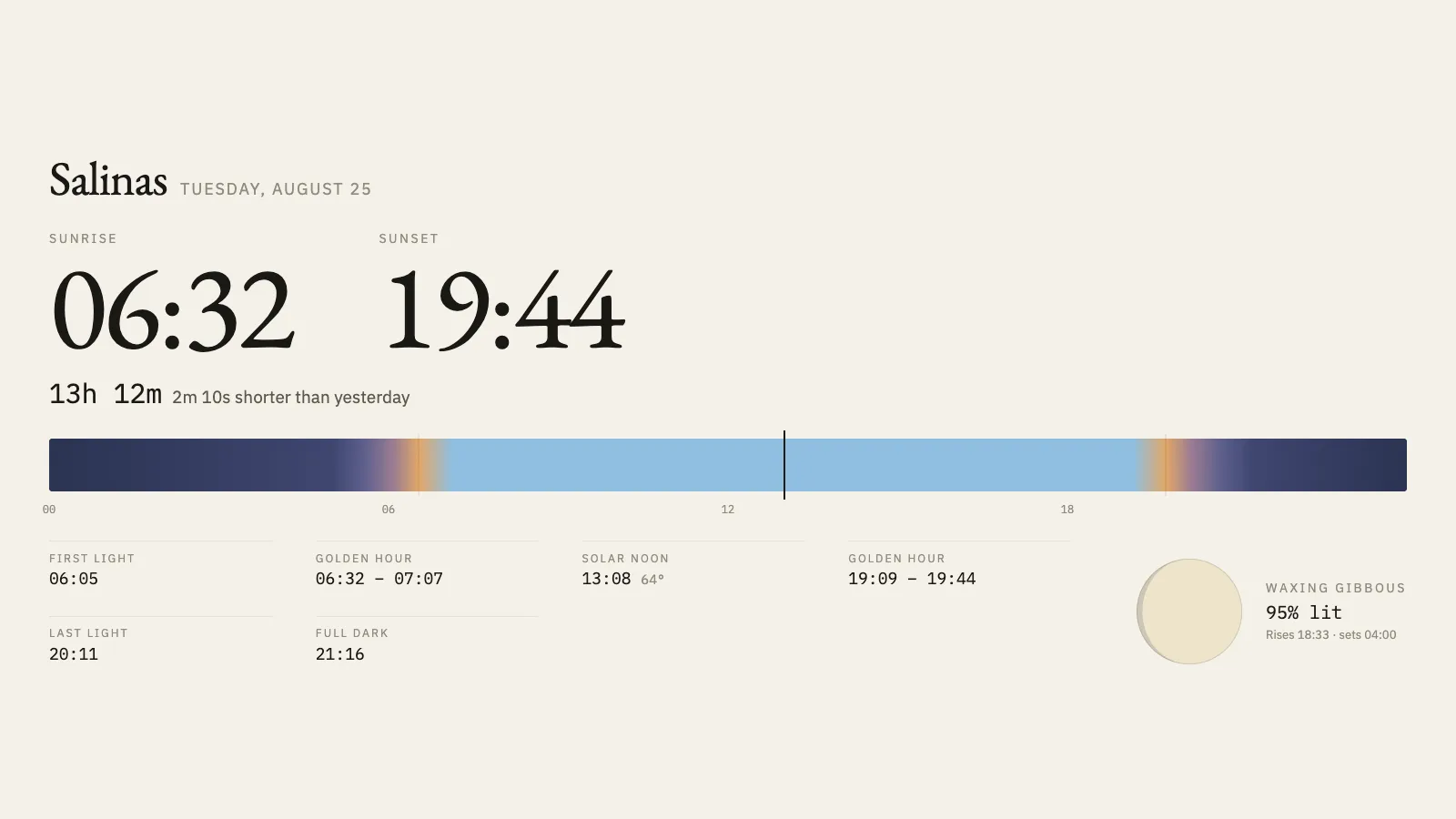
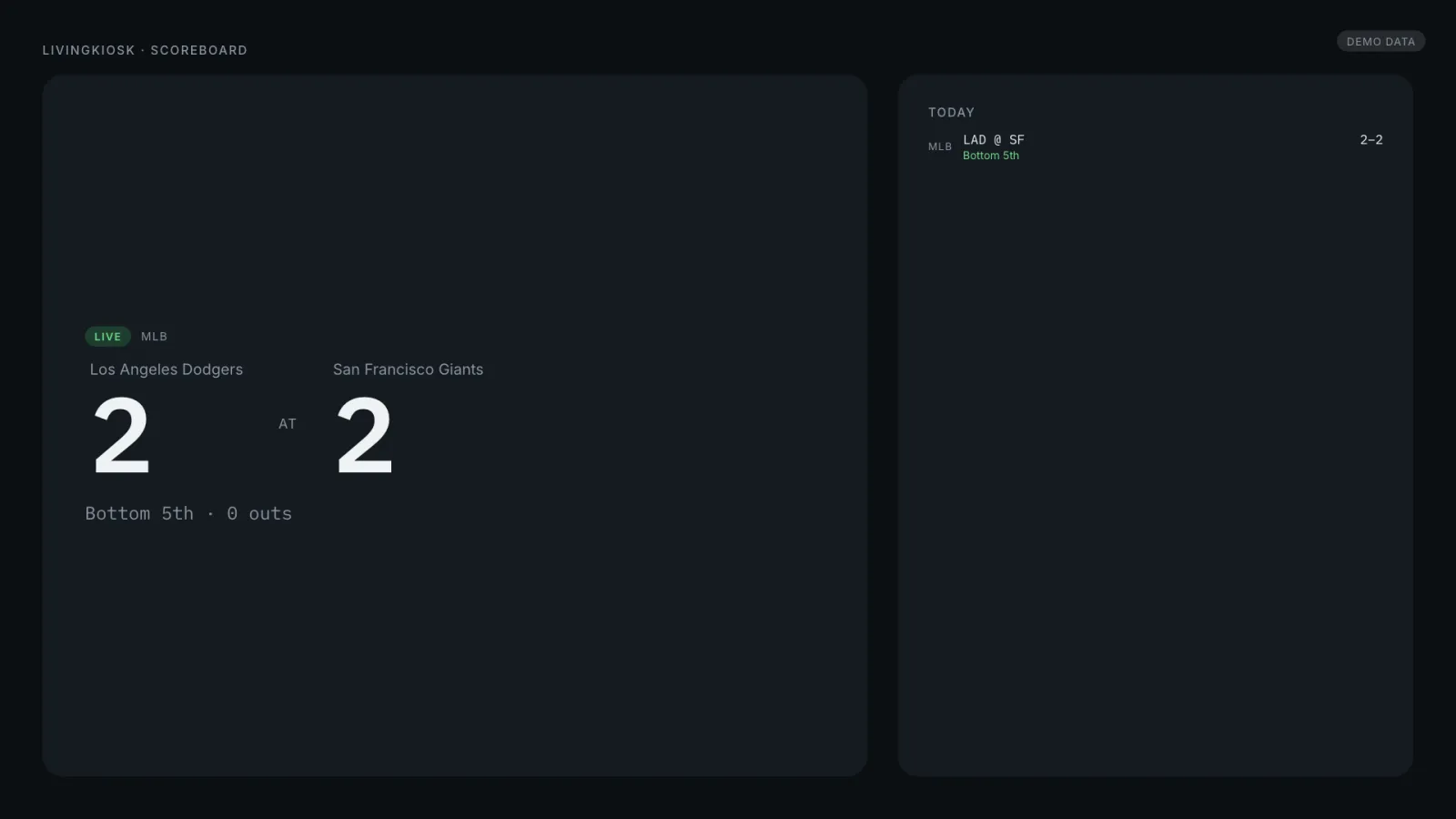
Editors’ picks
Somewhere to start.
Picked by hand for the range they show. The full set — 29 displays, grouped by kind — is at every display.


Who this is for
Built for whoever leaves a screen running.
Business owners
Menus and signage that aren’t a muted cable feed.
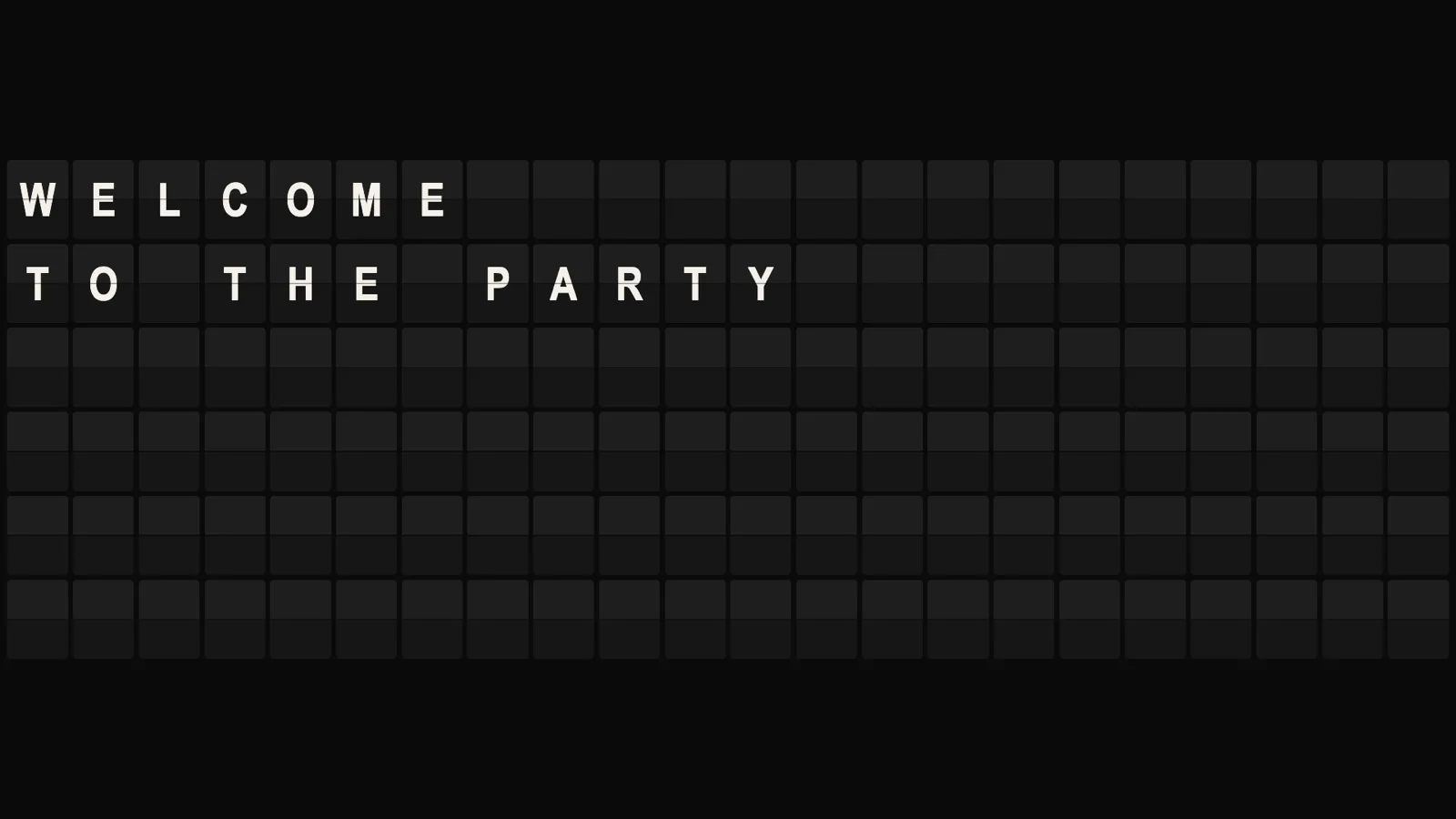
A lobby, a waiting room, a front counter — put something worth looking at on the screen that’s already there. Departures is a split-flap board that says whatever you type, and Newsprint sets the day’s news by itself; nobody has to remember to update a slide deck.

Events & weddings
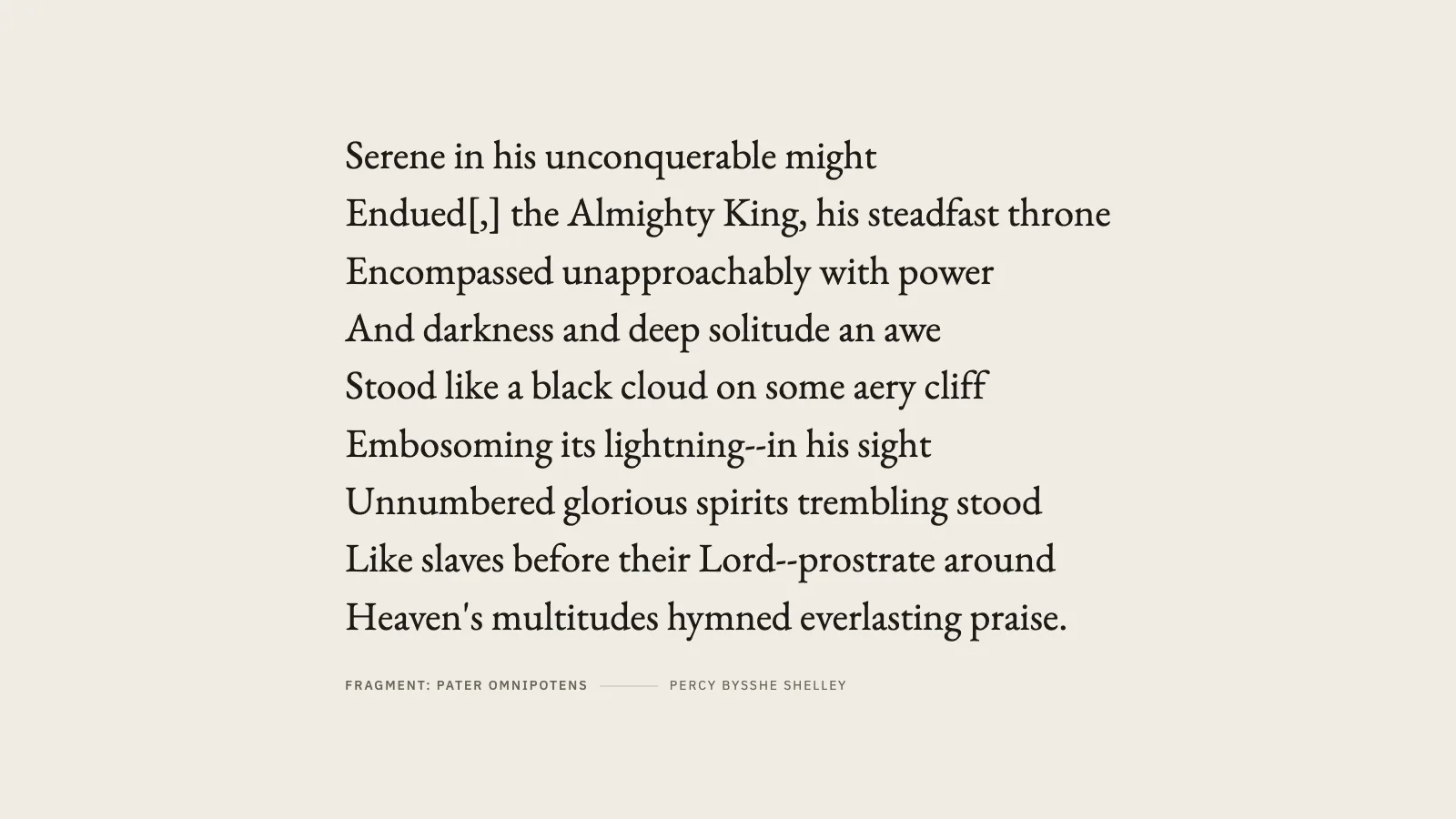
A frame or a poem, running quietly all night.
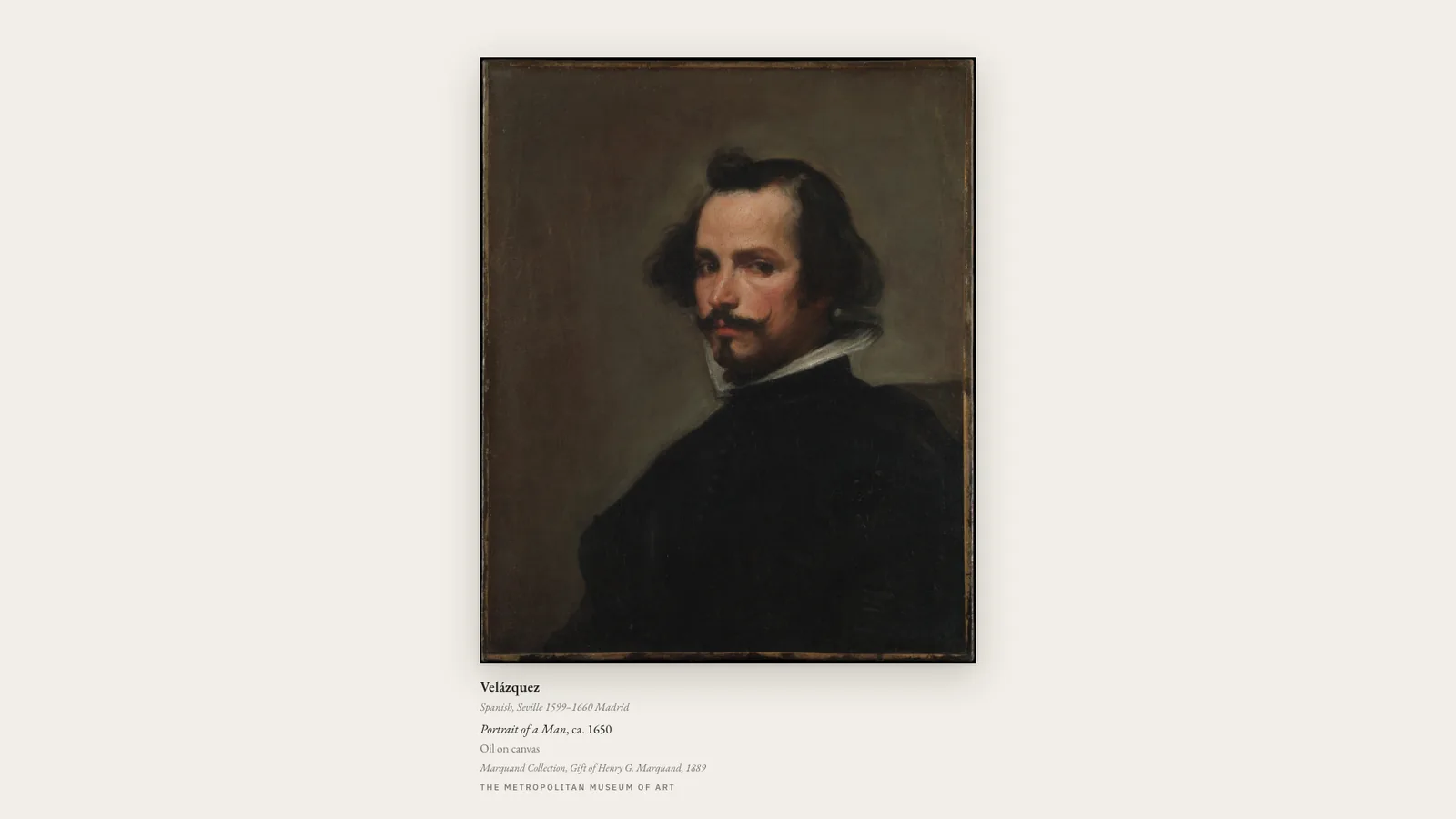
Gallery Frame and Passage both hold still long enough to actually look at, and Literary Clock tells the hour in a line from an old book. None of them needs a laptop babysitting it in the corner of the room.

At home
Turn the TV nobody’s watching into a gallery.
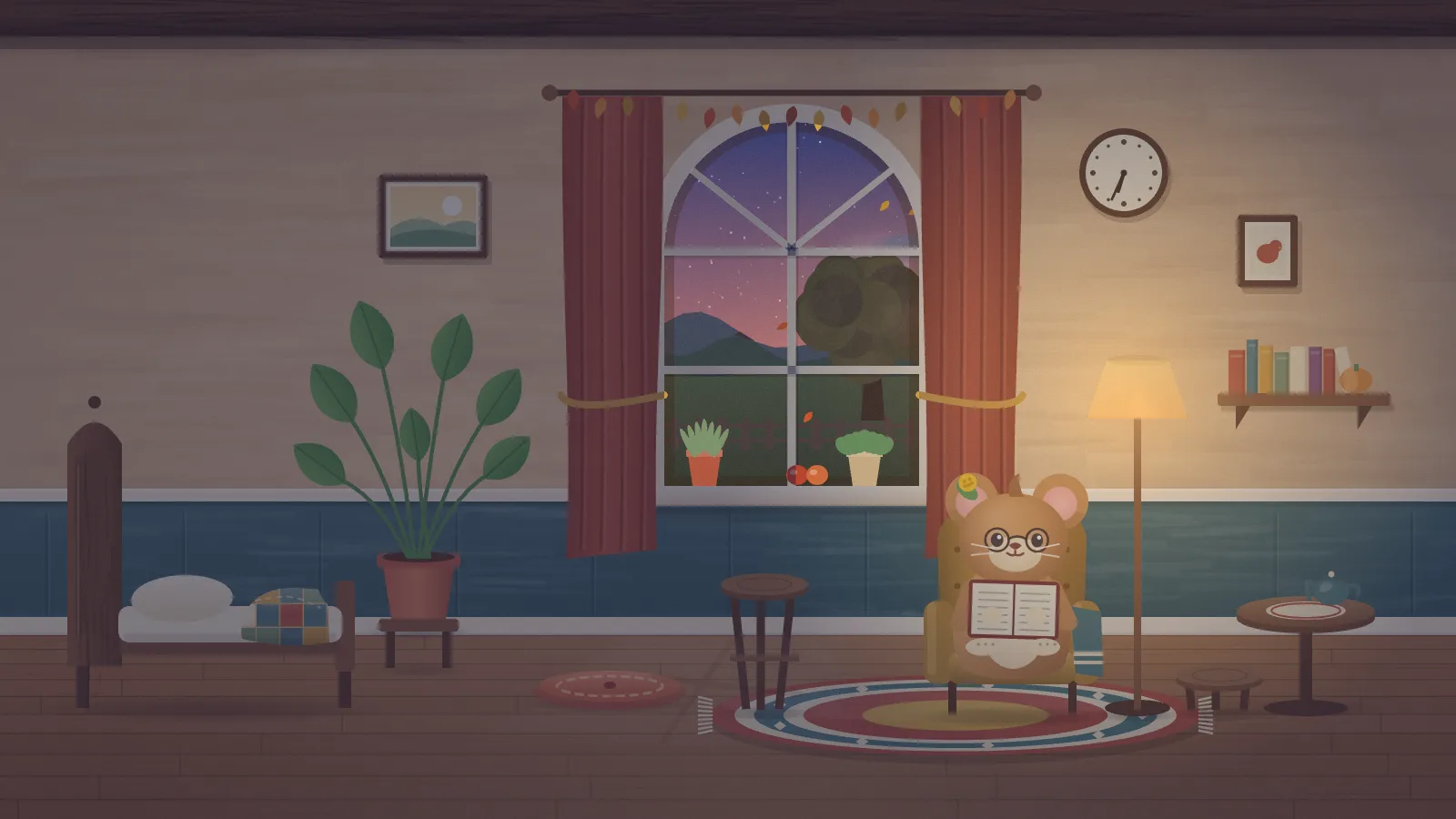
A TV that spends most of the day off, or looping the same streaming-service screensaver, can just as easily be showing real paintings, a channel that was already running before you walked in, a fire in the hearth, or a small creature getting on with its day in a cozy room. In a kitchen or a hallway, Weathervane says the weather in one plain sentence — and has a picture-book version for the children.
Desktop backgrounds
Like the creator actually uses it.
The Mac app does this today: any display behind your desktop icons, one per screen, picked and switched from the menu bar.
Mac app
Any display, behind your desktop icons.
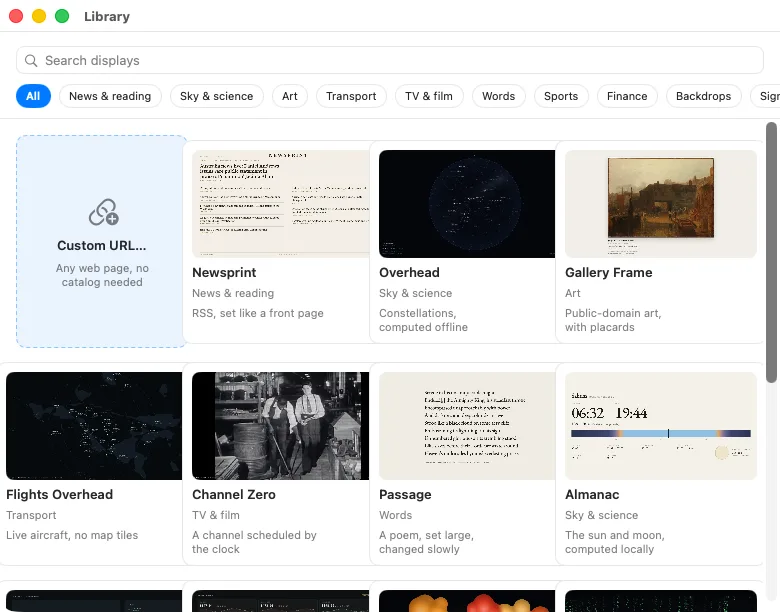
LivingKiosk for Mac puts any display behind your desktop icons, one per screen, picked from a Library window in the menu bar. Flights Overhead runs from your own connection, which is the way it works best.
Version 3.0.1 · macOS 13+ · Apple Silicon
Run it yourself
Every display is open source.
Not a trial, not a limited edition — the whole thing, MIT licensed, running on your own machine with nothing held back. No account, no telemetry, no CDN.
One command
git clone https://github.com/hellojoey/overhead
cd overhead
docker compose up -d
The source opens to the public soon, so this clone will not resolve yet. Every display is MIT licensed.
Then point a screen at http://your-host:8353. Every display follows the same shape: a Dockerfile, a compose file with the settings documented inline, and a /setup page that builds the URL for you.
Prefer not to run anything? Hosted displays are free today. If a paid hosted tier arrives later, the software stays free and MIT.
The repositories
One per display, 29 in all, plus this site.
- NewsprintRSS, set like a front page
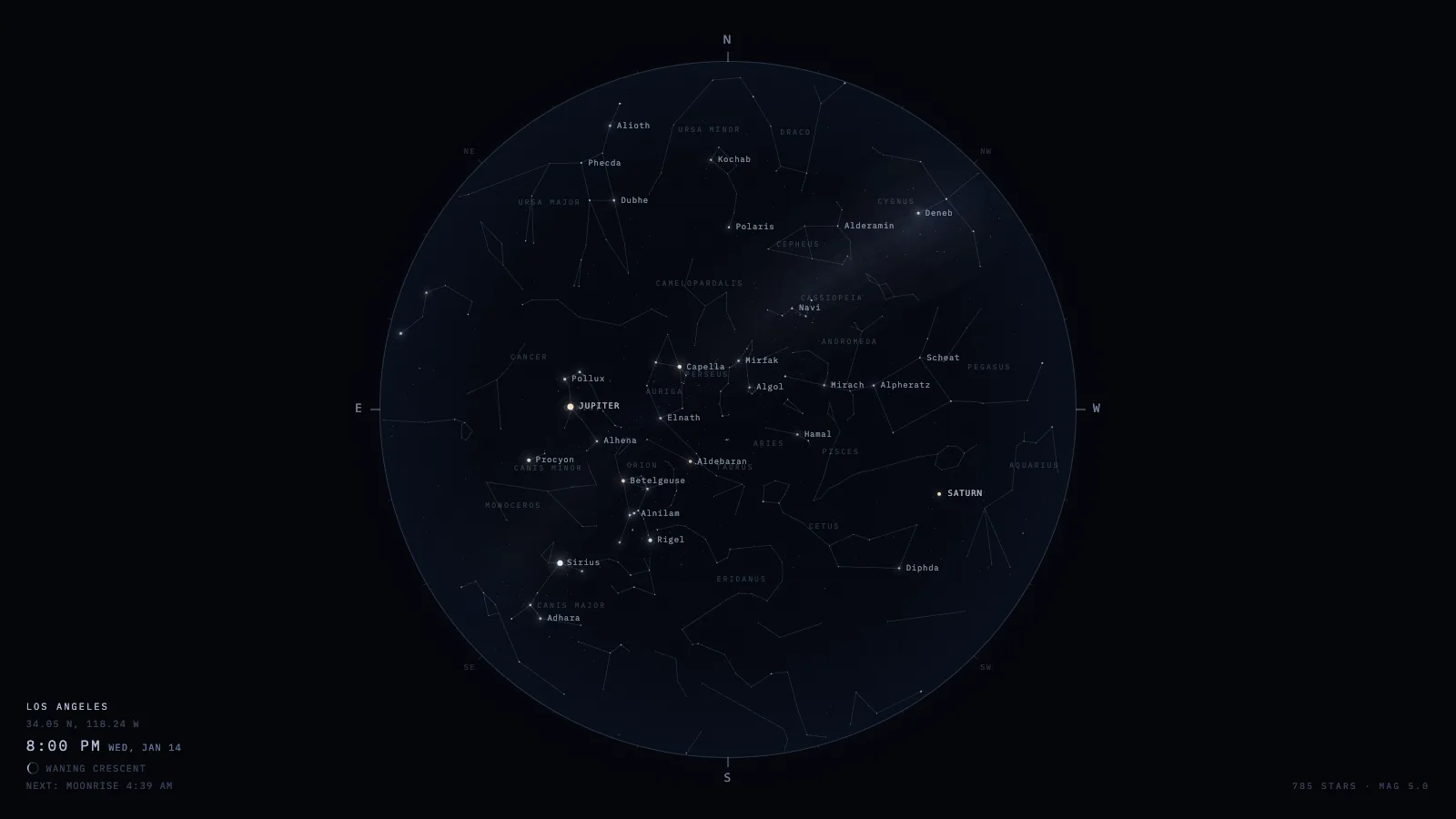
- OverheadConstellations, computed offline
- WeathervaneThe weather, said in one sentence
- Gallery FramePublic-domain art, with placards
- Flights OverheadLive aircraft, no map tiles
- Channel ZeroA channel scheduled by the clock
- ElsewhereLive cameras that hop every few minutes
- PassageA poem, set large, changed slowly
- Literary ClockThe time, told by a line from an old book
- DeparturesA split-flap board that says whatever you type
- All ClearQuiet until something nearby needs you
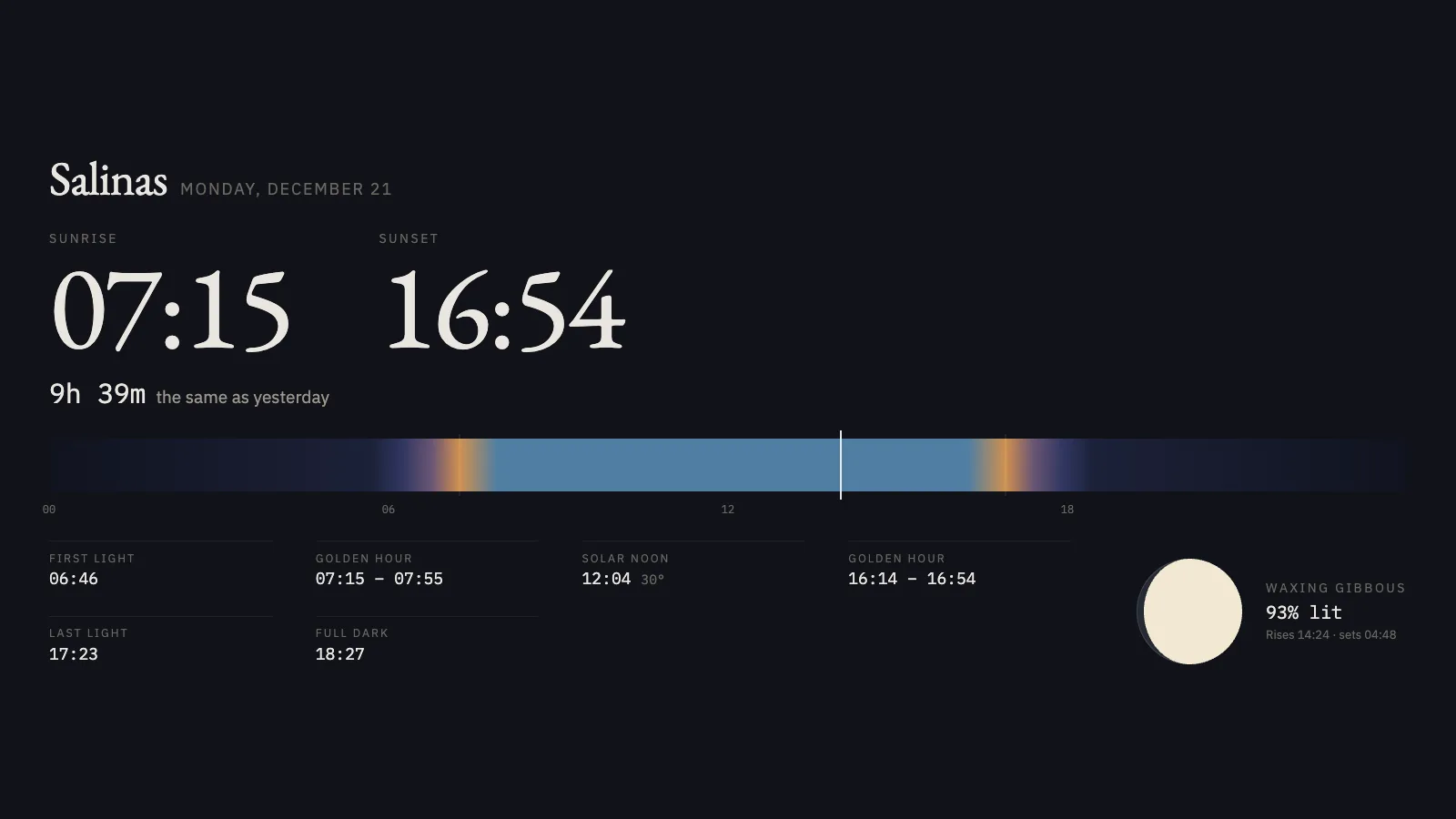
- AlmanacThe sun and moon, computed locally
- OrbitThe space station and next launches
- LavaBlobs of colour, drifting and merging
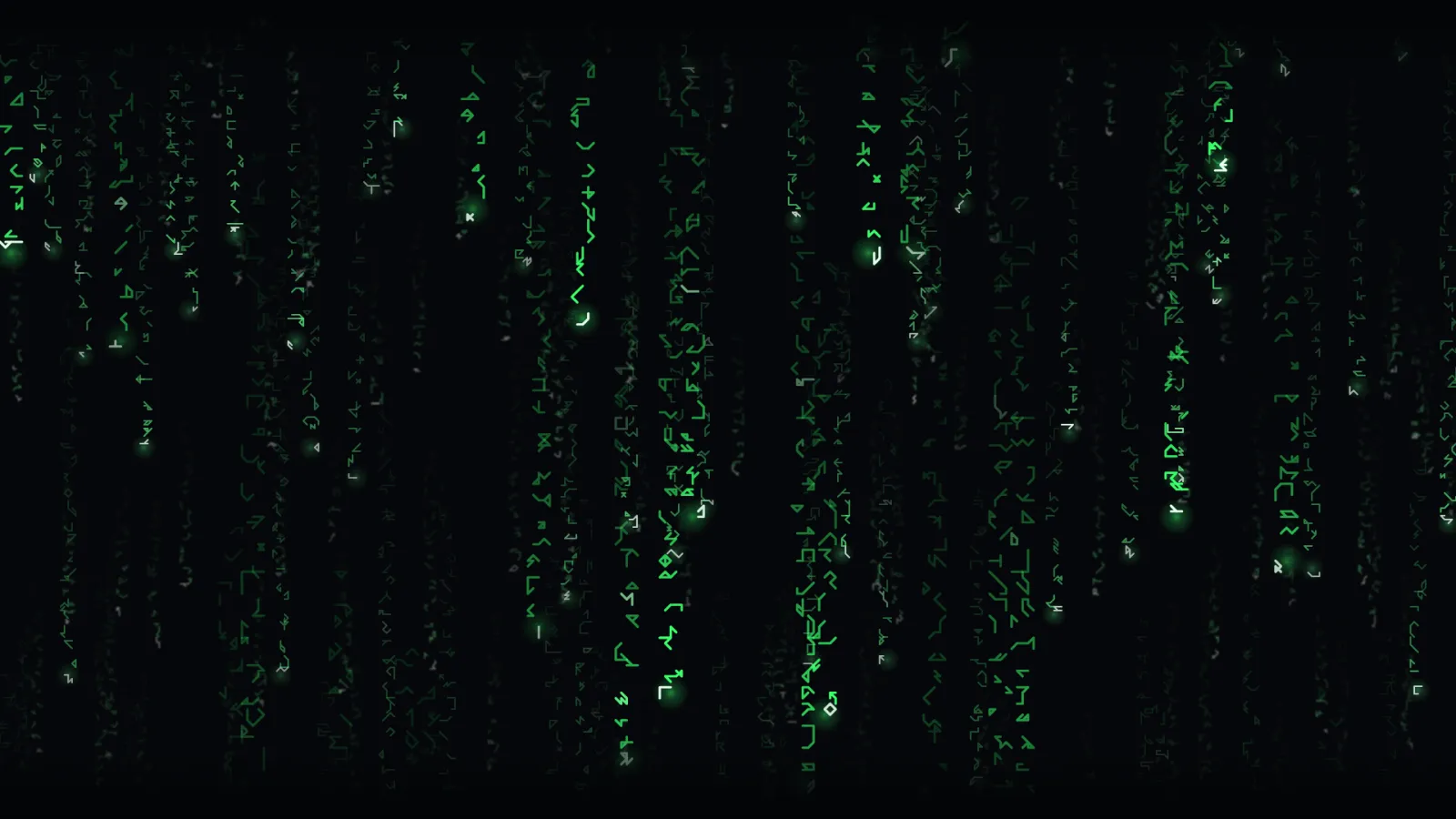
- RainFalling glyphs, drawn from scratch
- ScoreboardYour teams, live or next up
- KoiA koi pond, seen from above
- PaneRain on a window, each drop a lens
- MeadowWind in the grass, under big clouds
- FirefliesFlashes slowly falling into step
- HearthA wood fire in a brick hearth
- SnowfallSnow coming down through a winter wood
- TideA beach from straight above
- AuroraNorthern lights over a still lake
- NebulaDrifting through glowing gas
- ZenA raked sand garden from above
- Night WindowsA street across the way, living its evening
- TankA calm aquarium that sleeps when you do
- TansyA small creature living a day in a cozy room
- This siteThe gallery you are looking at
One more thing
A note from the creator
I am well aware this is a tool built on a foundation of AI. I’m not a coder, nor very skilled in tech. I wanted something cute… er, cool. I had a keyboard and a subscription to Claude. So I had it make this, and I thought I’d share it with all of you who might also think it’s ‘cool.’
This is mostly an open source project. Hosted displays are free today. If a paid hosted tier arrives later, the software stays free and MIT. Do I want to make money off of this? Sure, I’d love to quit my day job. But I’m not expecting to.
I’m also open to anyone with more of a tech background who’s interested in making this project bigger and better coming onboard as a technical founder. I’m well aware you’d have my metaphorical balls in a vise, since I’ll have no protection from those with the wherewithal to just take my idea from me. But be forewarned: I do own swords and a whetstone.
— Joey
Chip in for hosting
Hosting costs real money to keep running. If LivingKiosk made one of your screens nicer, the price of a coffee helps keep the lights on.
Buy me a coffee →