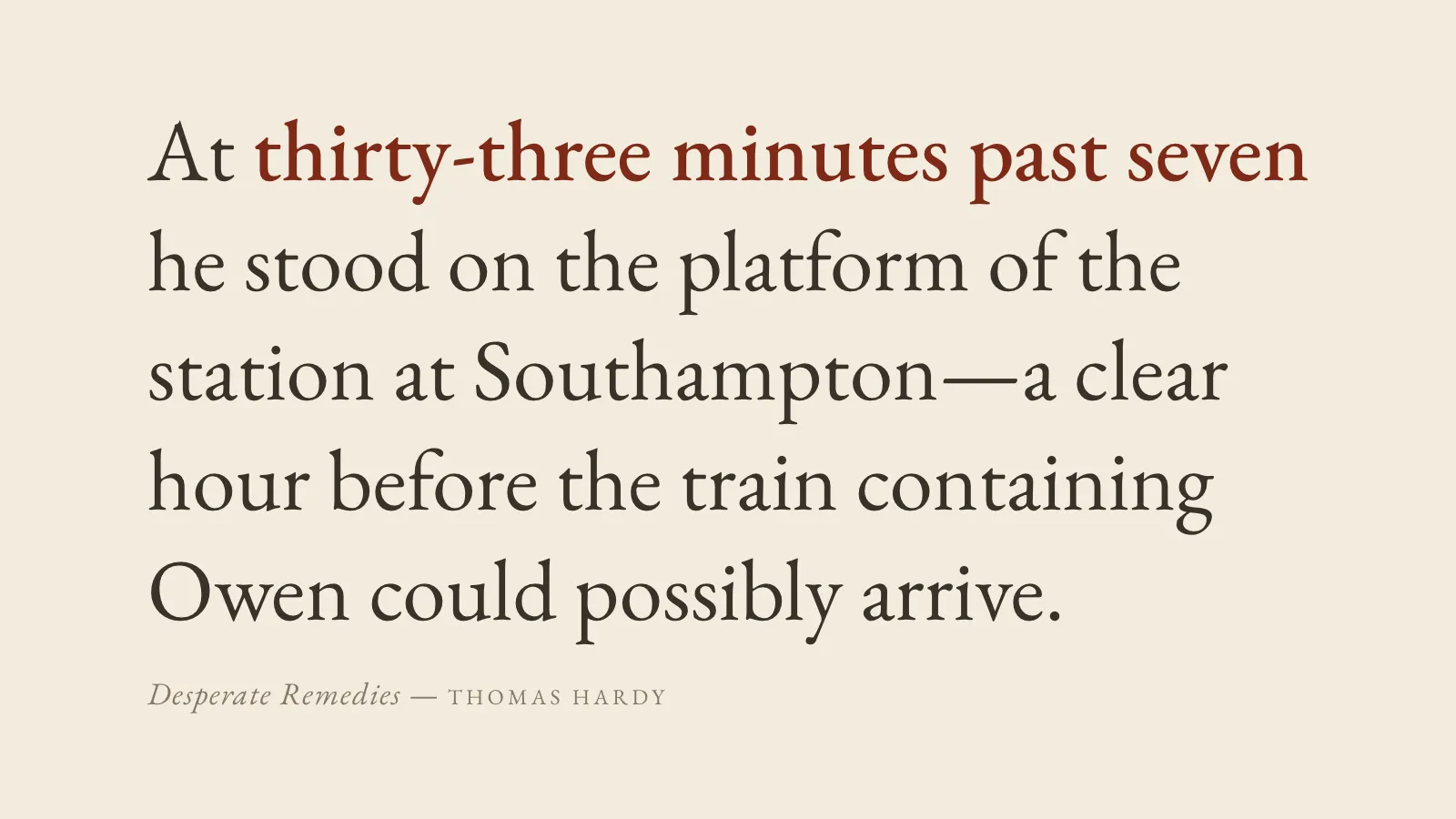
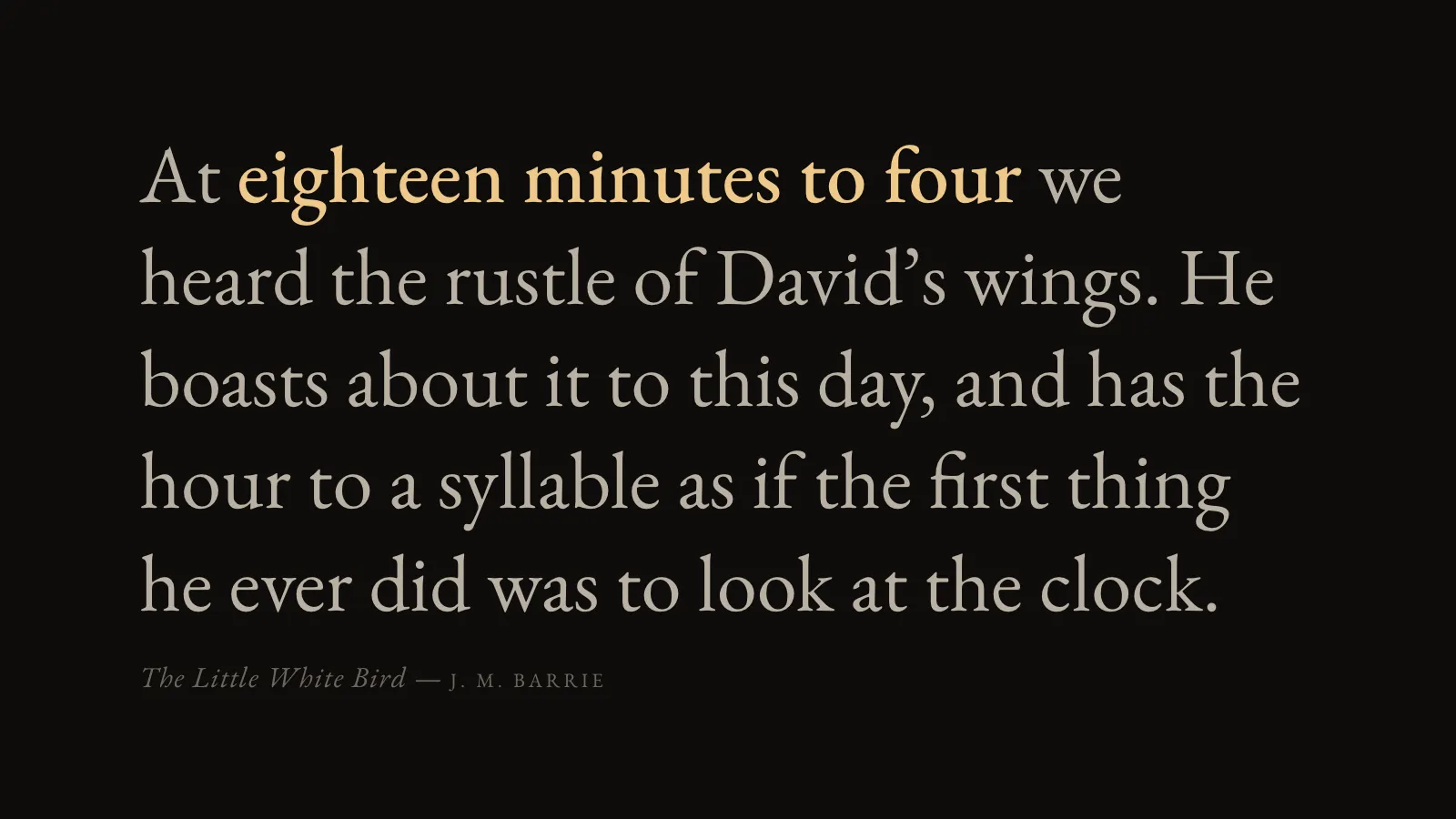
The time, told by a sentence from an old book that mentions that very minute, with the time phrase picked out in colour and the title and author quietly beneath. It changes on the minute. Every passage is bundled with the page, so it makes no outbound request at all: nothing to fetch, no key to rotate, and nothing upstream that can disappear or start charging.
PaperWarm off-white with dark ink, the time phrase in red.InkNear-black with soft light text, the time phrase in gold.
Where the passages come from
Only public-domain books: 1,131 passages from 278 novels and story collections, mined from Project Gutenberg texts whose authors died before 1956 and which were first published before 1931. The rule is enforced in code and checked by the tests, and nothing is copied from any commercial literary clock.
Never blank, never a wrong time
Not every minute has a book to its name. 352 of the 1,440 do; a further 143 borrow a passage whose phrase is itself approximate from a minute either side; every other minute gets a plain sentence in the same type, each one checked by reading it back as a time. When a minute has several passages the day number picks one, so two screens in a room show the same line.
What it wants
A screen and no network. The type is sized to the biggest that fits, so one URL looks right on a 16:9 TV, a portrait phone or an ultrawide. Paper or ink, 12- or 24-hour wording for the plain sentence, and a time zone if the screen’s clock is not the room’s. The text drifts a few pixels each minute so nothing burns in.
Setup
Put Literary Clock on a screen.
A browser is genuinely enough — the Mac app and Fully Kiosk below are conveniences, not requirements.
Any screen
nothing to install
Open the display in whatever browser the screen already has.
Go full screen: F11 on Windows and Linux, ⌃⌘F on macOS.
Or give it a browser of its own, which is what a dedicated panel wants: chrome --kiosk <url> — on macOS, open -a "Google Chrome" --args --kiosk <url>.
Turn off display sleep in the machine’s power settings and walk away.
Works on anything with a browser
Mac desktop
LivingKiosk app
Get the app and its install steps at livingkiosk.com/mac. It isn’t notarized yet, so macOS asks you to approve it once.
Menu bar → Library… and pick a display for each screen.
Configure… on any screen for its reload schedule, dim, and saved configs.
Displays are ordinary web pages, so anything that can hold one open works: a Raspberry Pi on a monitor, a retired iPad, a Fire tablet, the browser built into a TV.