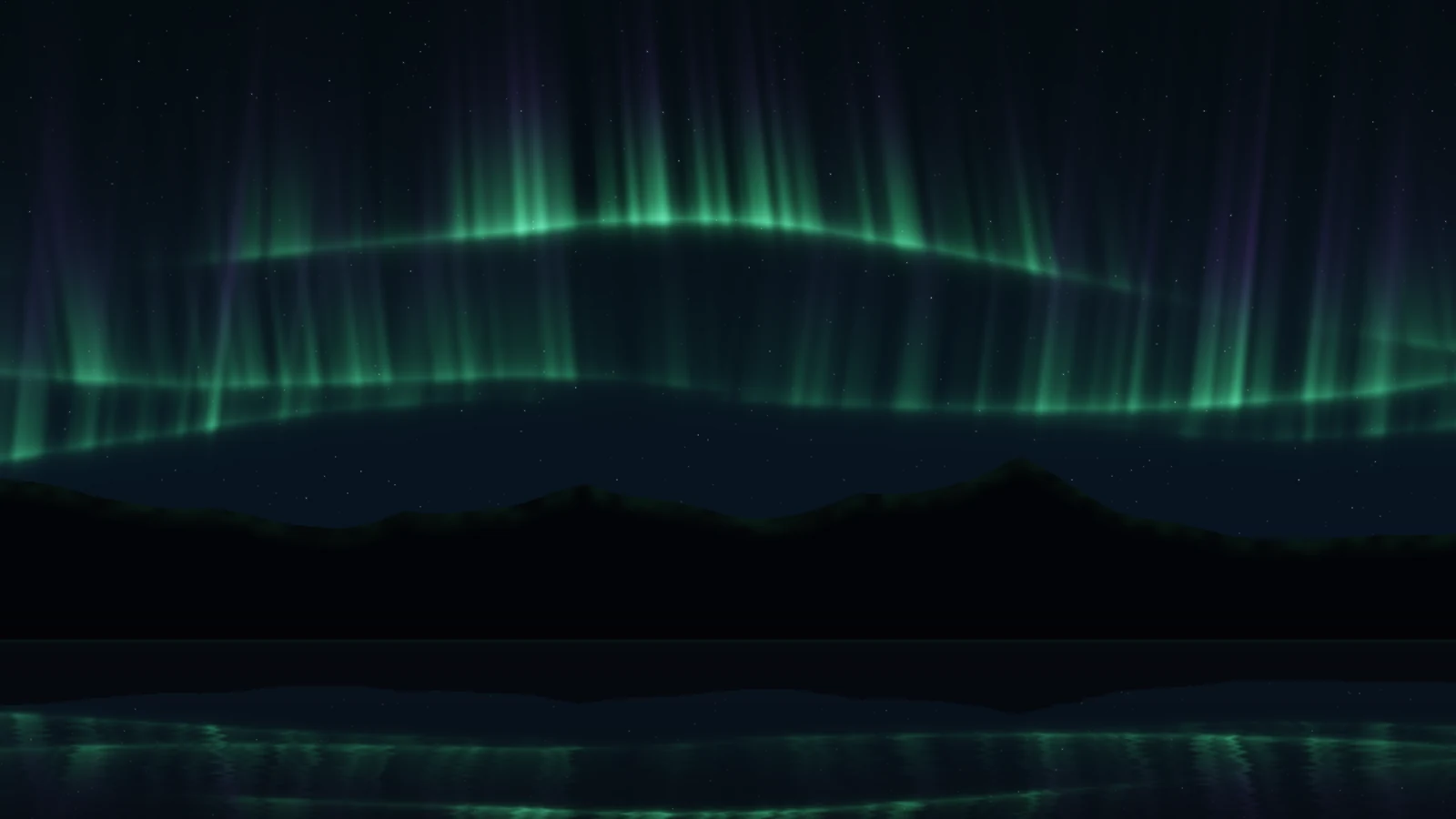
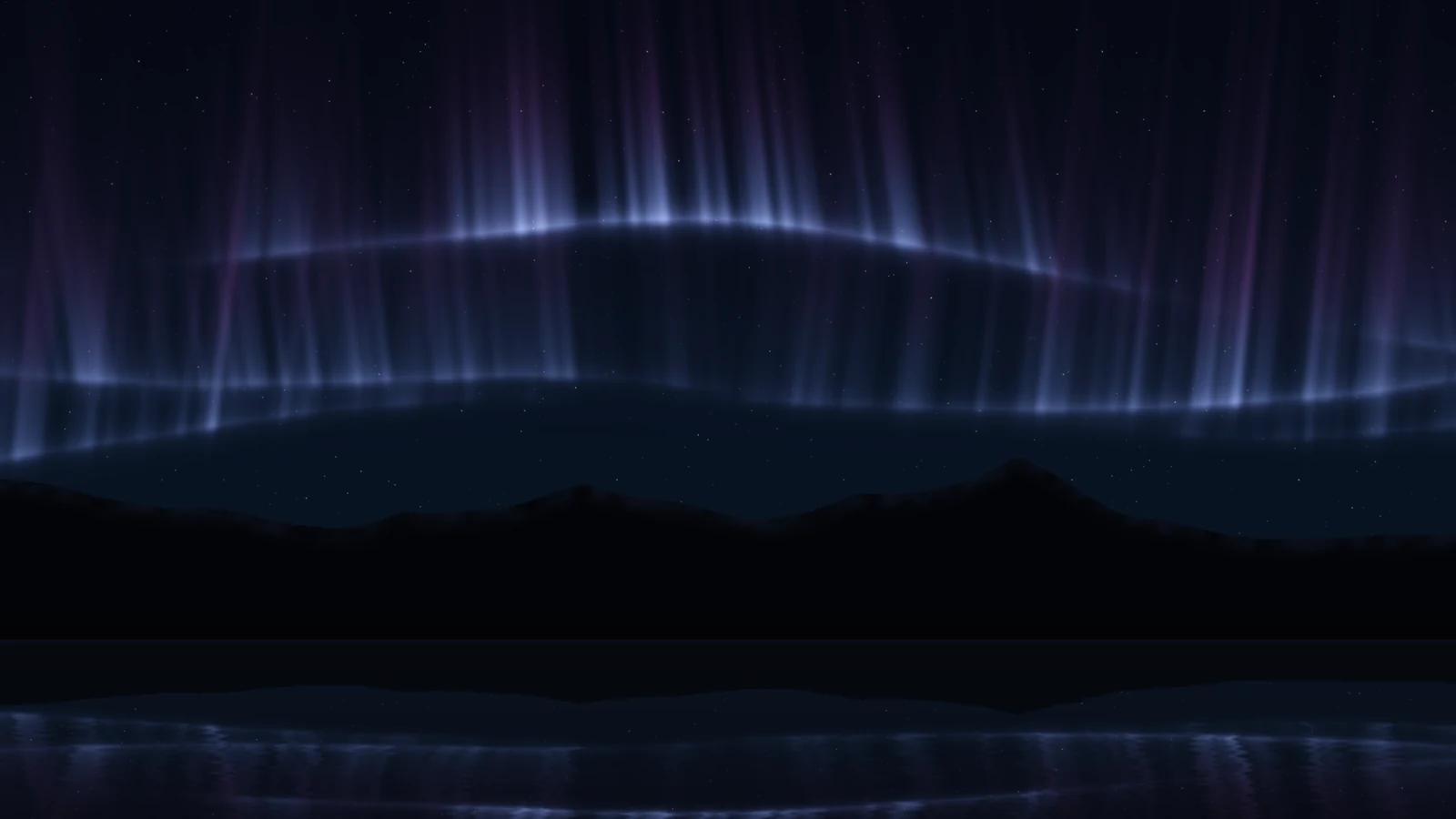
Northern lights over dark mountains and a still lake. Three ribbons each carry a bright, sharp lower hem and rays that fade upward; the hem snakes on two slow waves plus noise so it folds into S-bends, and the rays lean with its slope, as real curtains do. The lake mirrors the sky and the peaks through slow ripples. It is an impression of an aurora, not a forecast of one — it shows no data.
GreenThe default: green curtains over black peaks.VioletThe same sky in a cooler, bluer palette.
One shader, three ribbons
The whole picture is a single fragment shader. Brightness surges travel along each ribbon, and the result goes through a gentle tone curve so a surge never clips. The clock starts at a seed-derived moment, so screens given the same seed open on the same sky.
If you self-host
Self-hosted, read-only container. Aurora makes no outbound request at all and shows no data — it is drawn on the GPU at 75% of the capped pixel ratio, redrawn at most 30 times a second, and meant to be forgotten rather than to spin up a fan.
What it wants
A palette — green, violet, or crimson — and how active the sky should be. Switch the lake off for mountains only.
Setup
Put Aurora on a screen.
A browser is genuinely enough — the Mac app and Fully Kiosk below are conveniences, not requirements.
Any screen
nothing to install
Open the display in whatever browser the screen already has.
Go full screen: F11 on Windows and Linux, ⌃⌘F on macOS.
Or give it a browser of its own, which is what a dedicated panel wants: chrome --kiosk <url> — on macOS, open -a "Google Chrome" --args --kiosk <url>.
Turn off display sleep in the machine’s power settings and walk away.
Works on anything with a browser
Mac desktop
LivingKiosk app
Get the app and its install steps at livingkiosk.com/mac. It isn’t notarized yet, so macOS asks you to approve it once.
Menu bar → Library… and pick a display for each screen.
Configure… on any screen for its reload schedule, dim, and saved configs.
Displays are ordinary web pages, so anything that can hold one open works: a Raspberry Pi on a monitor, a retired iPad, a Fire tablet, the browser built into a TV.
Configuration
URL parameters.
Everything below, plus a live preview and a URL builder that writes the link for you, is at aurora.livingkiosk.com/setup.
Parameter
Default
Meaning
palette
green
violet or crimson. The ribbon colours: the bright lower hem, and the colour its rays fade toward.
activity
1
How bright the ribbons are and how strongly they surge, 0.2–2. Clamped, not rejected.
lake
on
off gives mountains only instead of a lake that mirrors the sky.
speed
1
A multiplier on the clock every fold, surge and ripple runs from, 0.2–3.