LivingKiosk for Mac
Your spare screen, from the menu bar.
LivingKiosk for Mac shows a display as live wallpaper behind your desktop icons — one per screen, picked from a Library window and configured with a live preview. No account, nothing to sign in to.
Version 3.0.1 · macOS 13+ · Apple Silicon
Free, MIT-licensed · Install steps · Verify the checksum
What it does
Six things, one menu-bar icon.
Library
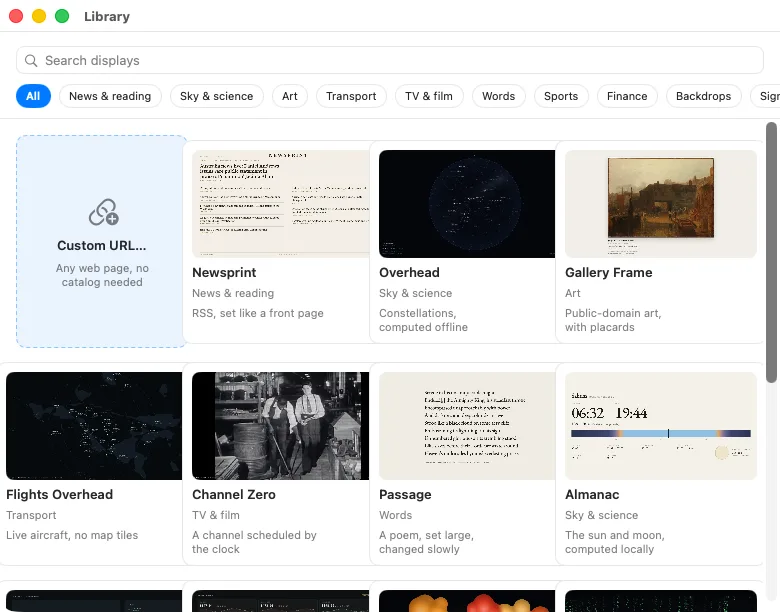
Search and browse every display in one window, filterable by category, and pick one per screen.
Setup sheet
Each display’s own /setup page, embedded, with a live preview and a single “Use on this Screen.”
Settings
Per-screen reload schedule, dim, enable, Browsing Mode, and saved configs you can switch back to.
Arrangement
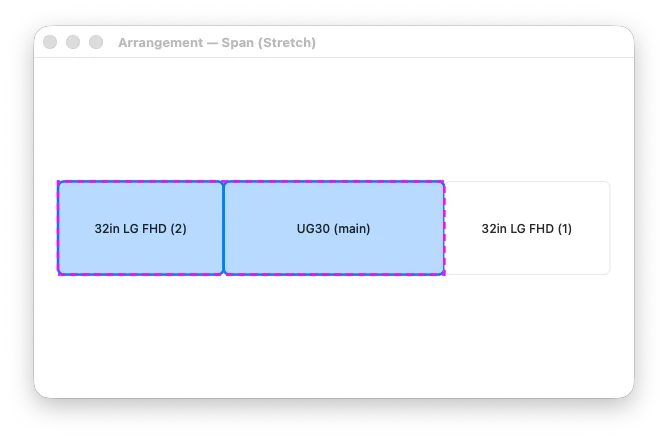
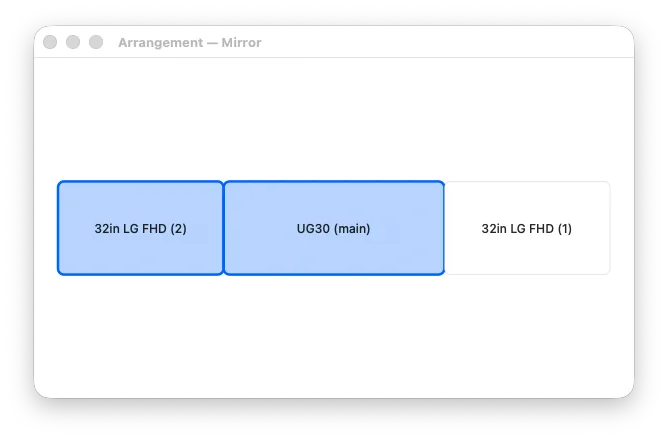
Span one display across several screens as one canvas, or mirror it so every screen shows the same thing.
Custom URL
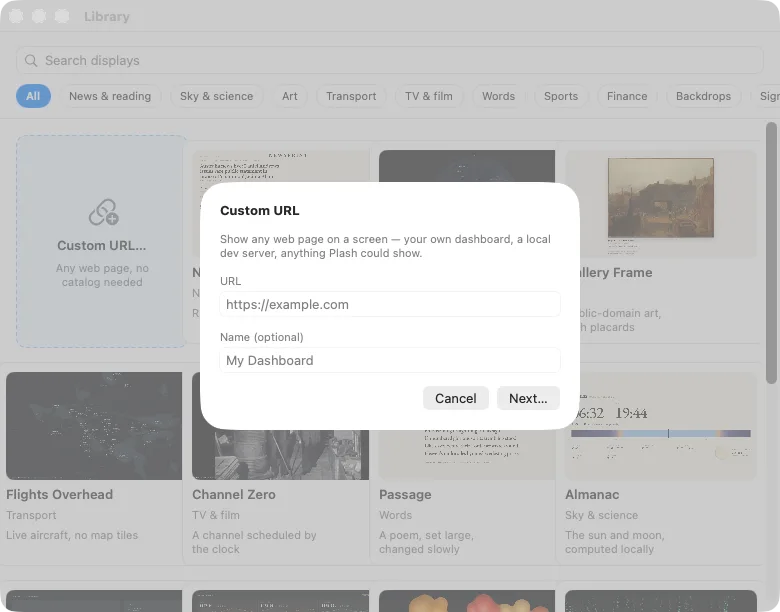
Any web page becomes a screen — a dashboard, a local dev server, anything with a URL.
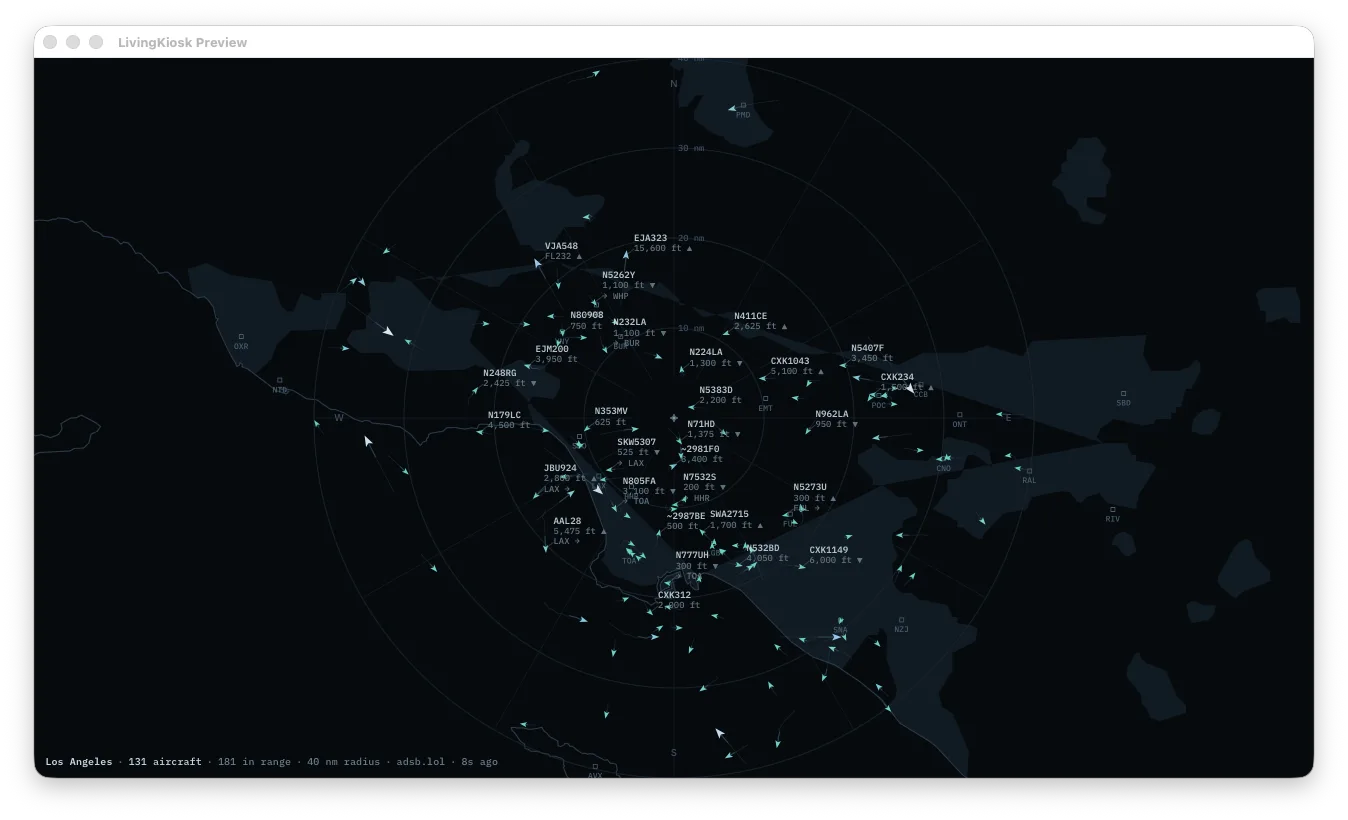
Flights companion
A bundled server fetches the live aircraft feed from your own home connection — the only kind the volunteer ADS-B network will answer.
Install
Four steps, once.
The app is not notarized by Apple yet, so macOS asks you to approve it the first time. Open Anyway works on every version the app supports. On macOS 13 and 14 you can also right-click the app and choose Open.
- Unzip the download and drag LivingKiosk.app into Applications.
- Open it once. macOS will say it “could not verify” the app is free of malware — click Done (or Cancel). This is expected: the app is not notarized.
- Open System Settings → Privacy & Security, scroll down to Security. Next to the LivingKiosk message, click Open Anyway, then Open, and confirm with your password or Touch ID.
- It’s a menu-bar app — there’s no window and no Dock icon. Look for the LivingKiosk icon at the top right of the screen, click it, choose Library…, and pick a display.
Terminal alternative
Skip step 3 and clear the quarantine flag directly, before the first launch:
xattr -d com.apple.quarantine /Applications/LivingKiosk.appVerify
Verify the download.
The app is not notarized, so it’s worth checking that the zip is the one that was built and released. Its SHA-256 checksum is:
abcba828aa320f1b777e7d31876ddf378a10c8754620deb747621f68cd9d3b67Run this on the zip you downloaded and compare the result:
shasum -a 256 ~/Downloads/LivingKiosk-mac-arm64.zipWhat’s new
What’s new in 3.0.1
- Self-recovery — Screens that crash or hang reload themselves.
- Failed loads — A page that fails to load retries, and recovers when the network returns.
- After sleep — Screens check themselves after the Mac wakes.
- Daily refresh — A quiet refresh every day at 4 AM.
- Reload Now — It always reloads, every time.
- Side monitors — They no longer start blank.
FAQ
Questions.
Intel Macs?
Not yet — the bundled Flights companion runtime is Apple Silicon only.
What if a screen crashes or the Mac sleeps?
It recovers on its own. A screen that crashes or hangs reloads itself, a page that fails to load retries until the network returns, and screens check themselves after the Mac wakes. Reload Now in the menu always reloads.
Does it need an account?
No. Nothing to sign in to, nothing to create.
What does it talk to?
livingkiosk.com, for the catalog and, only when you ask, latest.json for updates; whichever displays you choose; and the Flights companion talks to ADS-B feeds from your own connection.
Uninstall
Quit LivingKiosk from its menu, turn it off under System Settings → General → Login Items if you enabled launch at login, and delete it from Applications. It keeps nothing in Application Support; what’s left is small and safe to remove:
~/Library/Preferences/com.joeypayongayong.livingkiosk.plist
~/Library/Caches/com.joeypayongayong.livingkiosk/
~/Library/Caches/LivingKiosk/
~/Library/Logs/LivingKiosk/
Why not notarized?
Notarization needs an Apple Developer Program membership, which hasn’t happened yet. Until it does, macOS asks for Open Anyway once. The code is MIT, and the checksum above lets you confirm the download is the one that was released.
LivingKiosk for Mac is open source under the MIT licence. The source opens to the public soon.