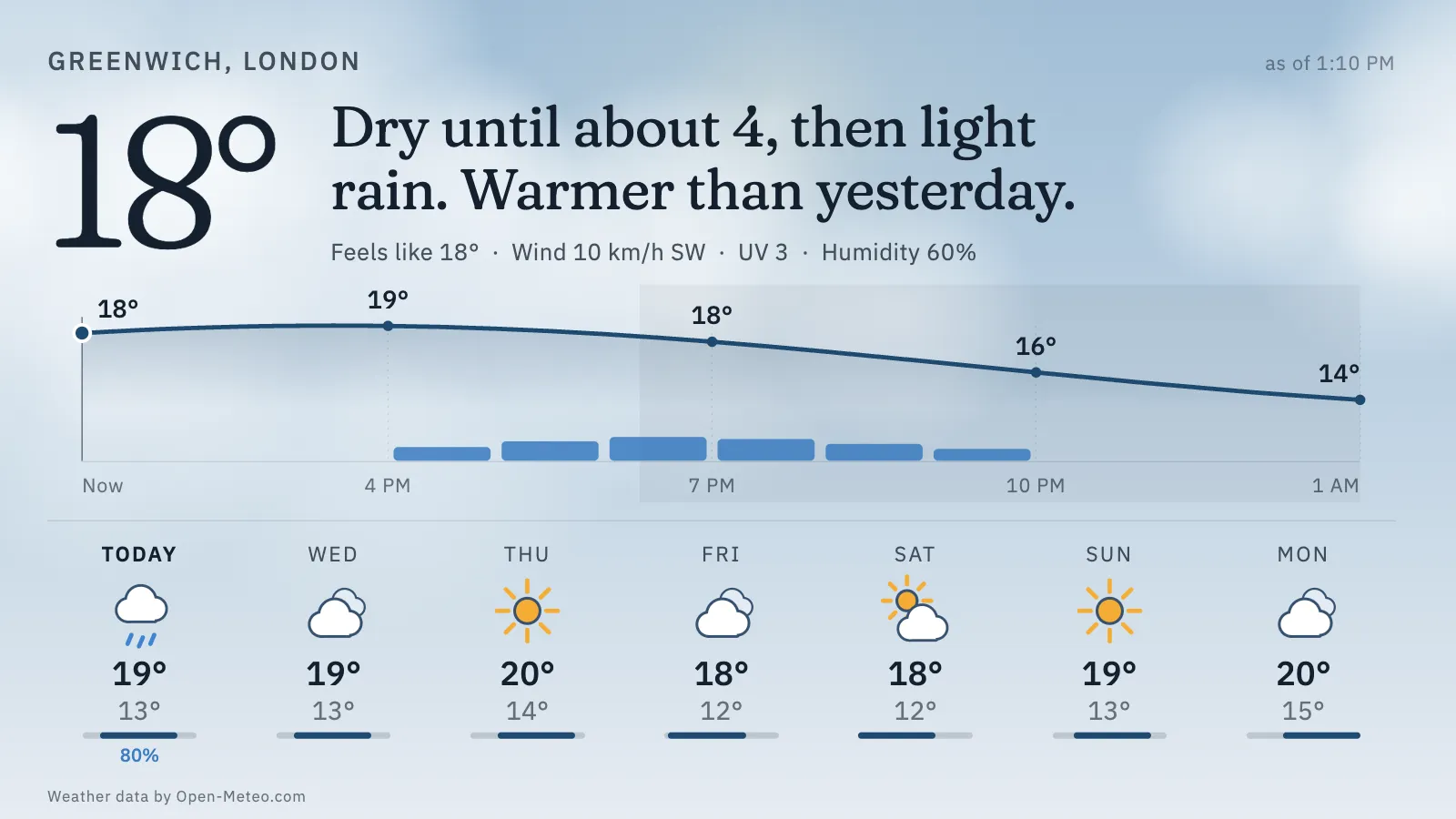
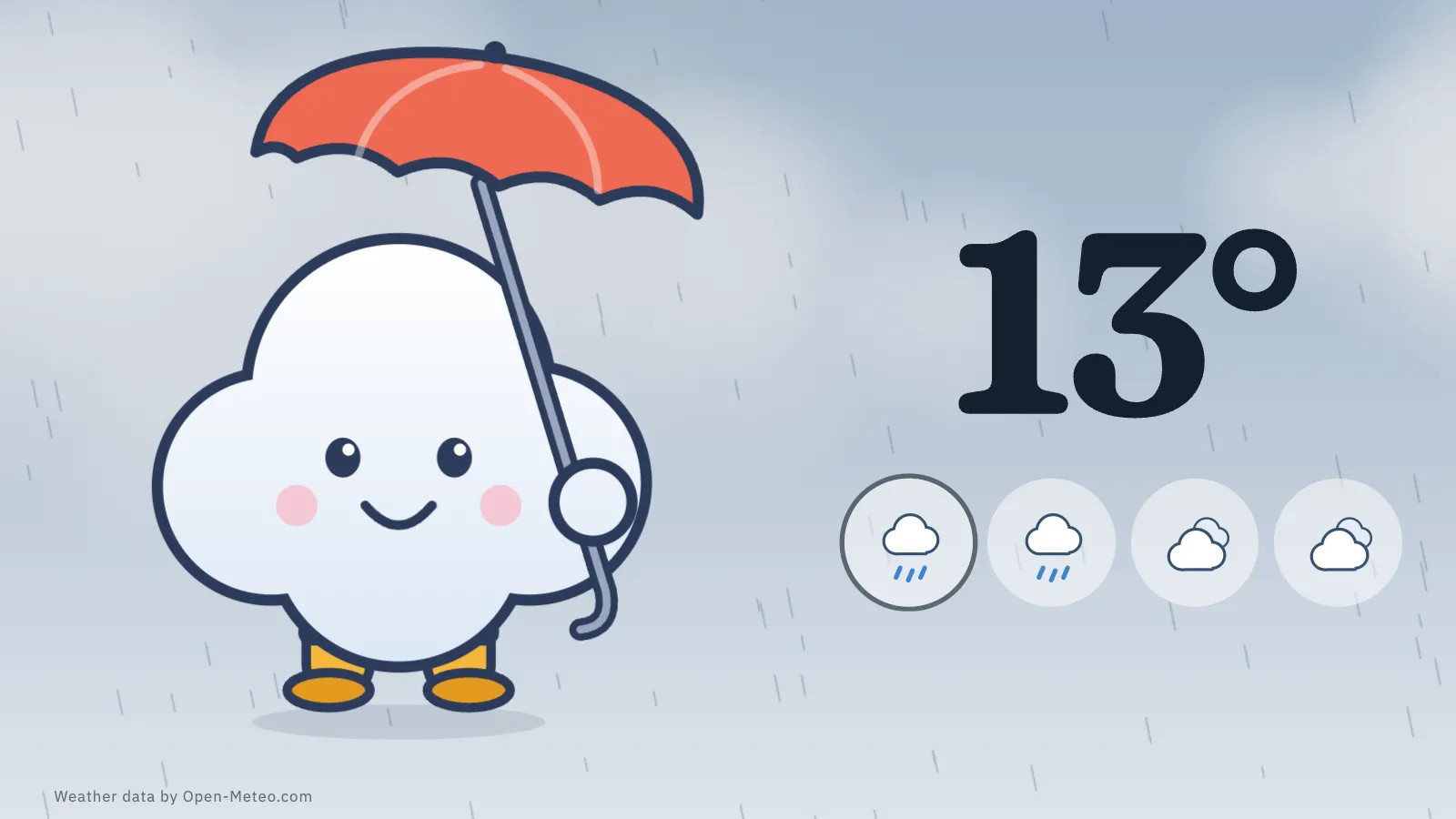
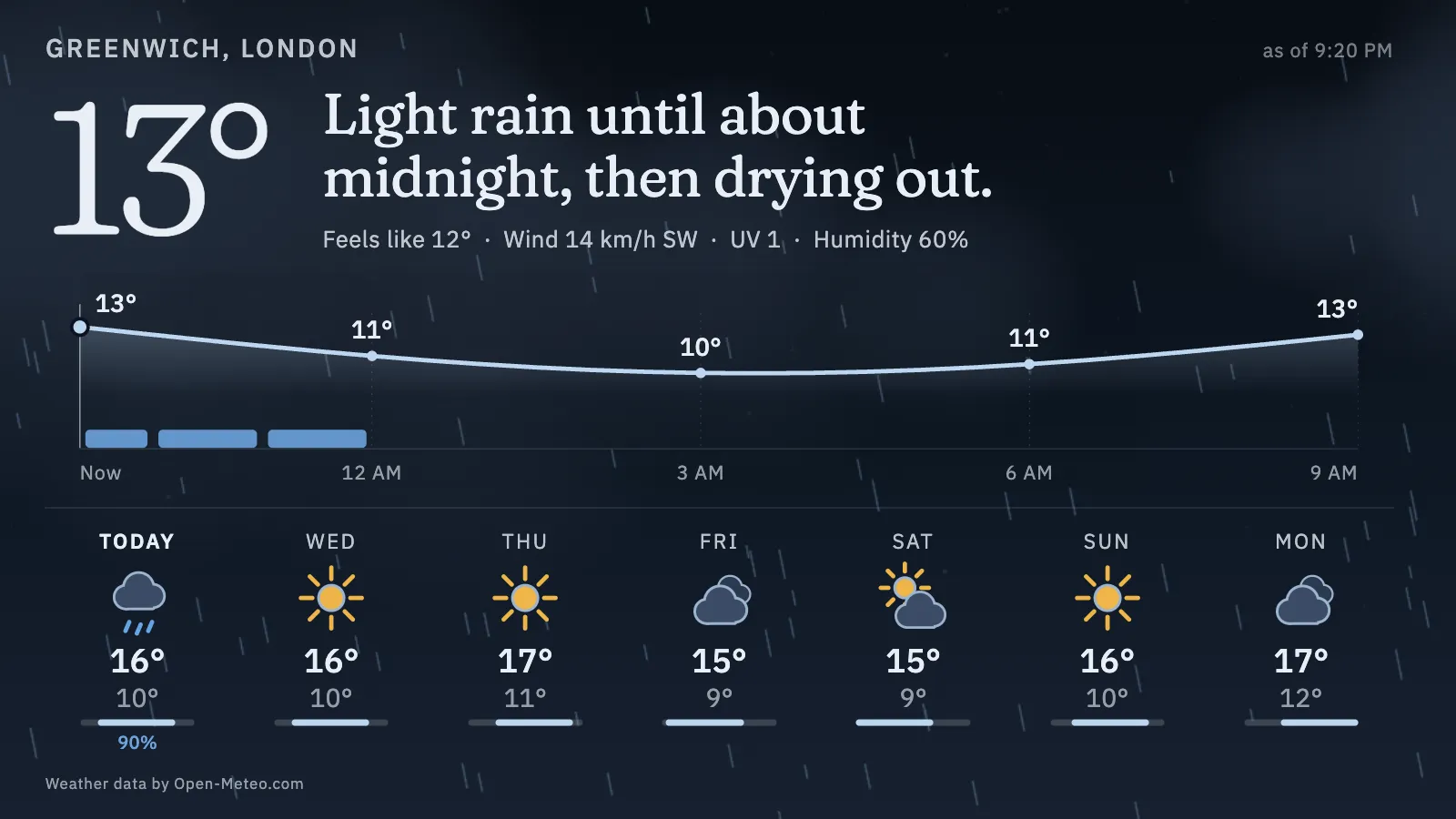
The weather, said the way a person would say it. One plain sentence you can read from across the room — “Dry until about 4, then light rain. Warmer than yesterday.” — with the next twelve hours as a soft temperature curve, the rain marked underneath, and the week ahead, all under a sky that matches the real one. There is also a picture-book version for children, with a small cloud who dresses for the day.
DayPale and airy: the sentence, the twelve-hour curve and the week.KidsThe picture-book version: a cloud in boots and an umbrella.NightDim and low in glare, for after dark.
Where the forecast comes from
Open-Meteo, read directly in the browser: no key, no account, and no server of ours in between. Each screen asks about every 15 minutes, far inside the free ceiling, and “Weather data by Open-Meteo.com” (CC BY 4.0) is shown on screen. The free API is for non-commercial use. Place search, on the setup page only, uses Open-Meteo’s geocoding.
Kids mode
Puff, an original round cloud, carries an umbrella and wears boots in the wet, a scarf, hat and mittens in the cold, sunglasses and a sun hat in the sun, and falls asleep at night. The rules are fixed, not random. The only number on screen is the temperature, with four icons for now and the next nine hours, and the sentence is still there for a screen reader.
What it wants
A latitude and longitude (it defaults to Greenwich), and a screen you can read from across the room. It never goes blank: if a poll fails the last good forecast stays up with a quiet “as of” time, and the last response is kept in the browser for up to three days. Units, clock and the day, night or auto look are all in the URL.
Setup
Put Weathervane on a screen.
A browser is genuinely enough — the Mac app and Fully Kiosk below are conveniences, not requirements.
Any screen
nothing to install
Open the display in whatever browser the screen already has.
Go full screen: F11 on Windows and Linux, ⌃⌘F on macOS.
Or give it a browser of its own, which is what a dedicated panel wants: chrome --kiosk <url> — on macOS, open -a "Google Chrome" --args --kiosk <url>.
Turn off display sleep in the machine’s power settings and walk away.
Works on anything with a browser
Mac desktop
LivingKiosk app
Get the app and its install steps at livingkiosk.com/mac. It isn’t notarized yet, so macOS asks you to approve it once.
Menu bar → Library… and pick a display for each screen.
Configure… on any screen for its reload schedule, dim, and saved configs.
Displays are ordinary web pages, so anything that can hold one open works: a Raspberry Pi on a monitor, a retired iPad, a Fire tablet, the browser built into a TV.