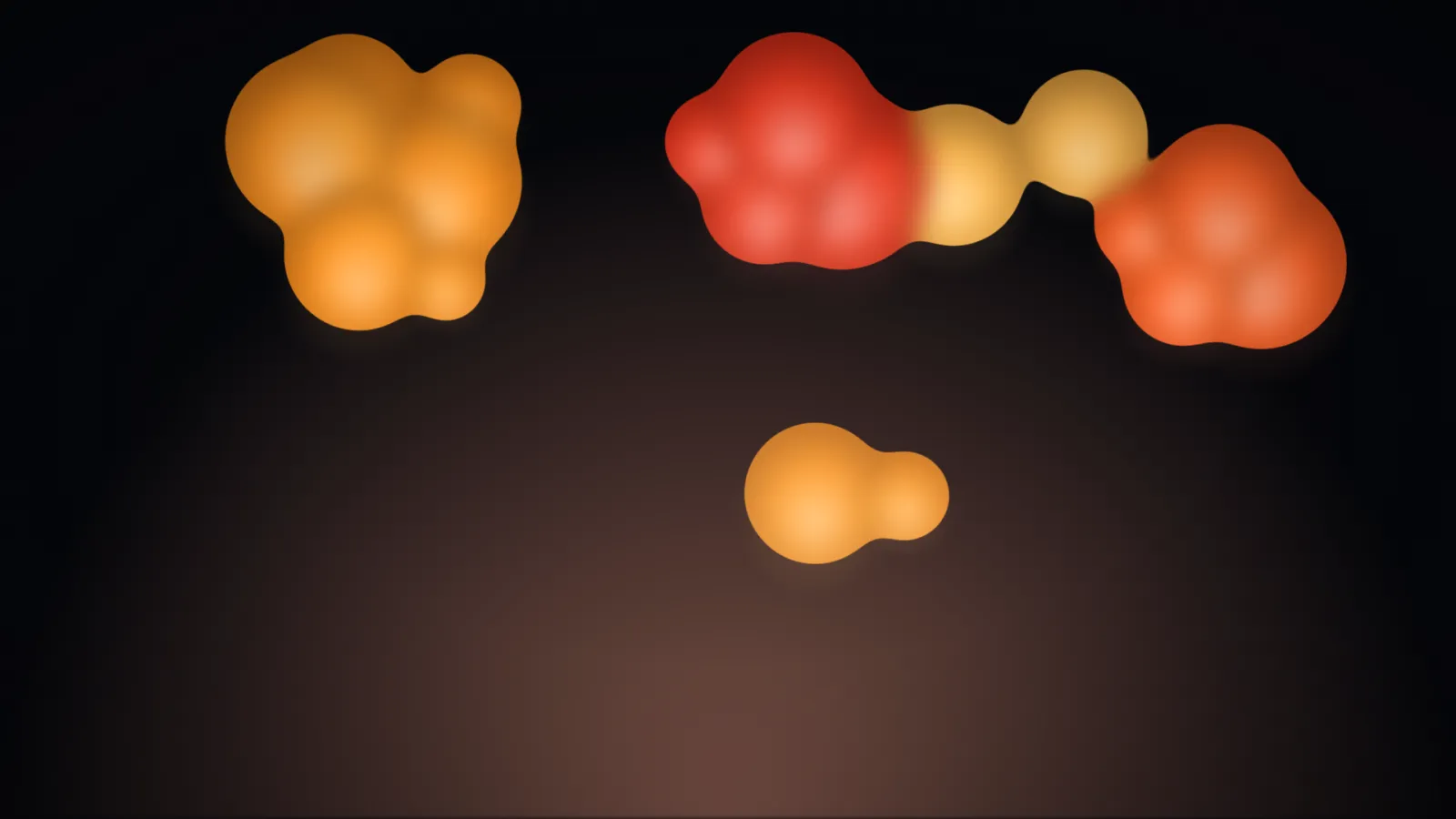
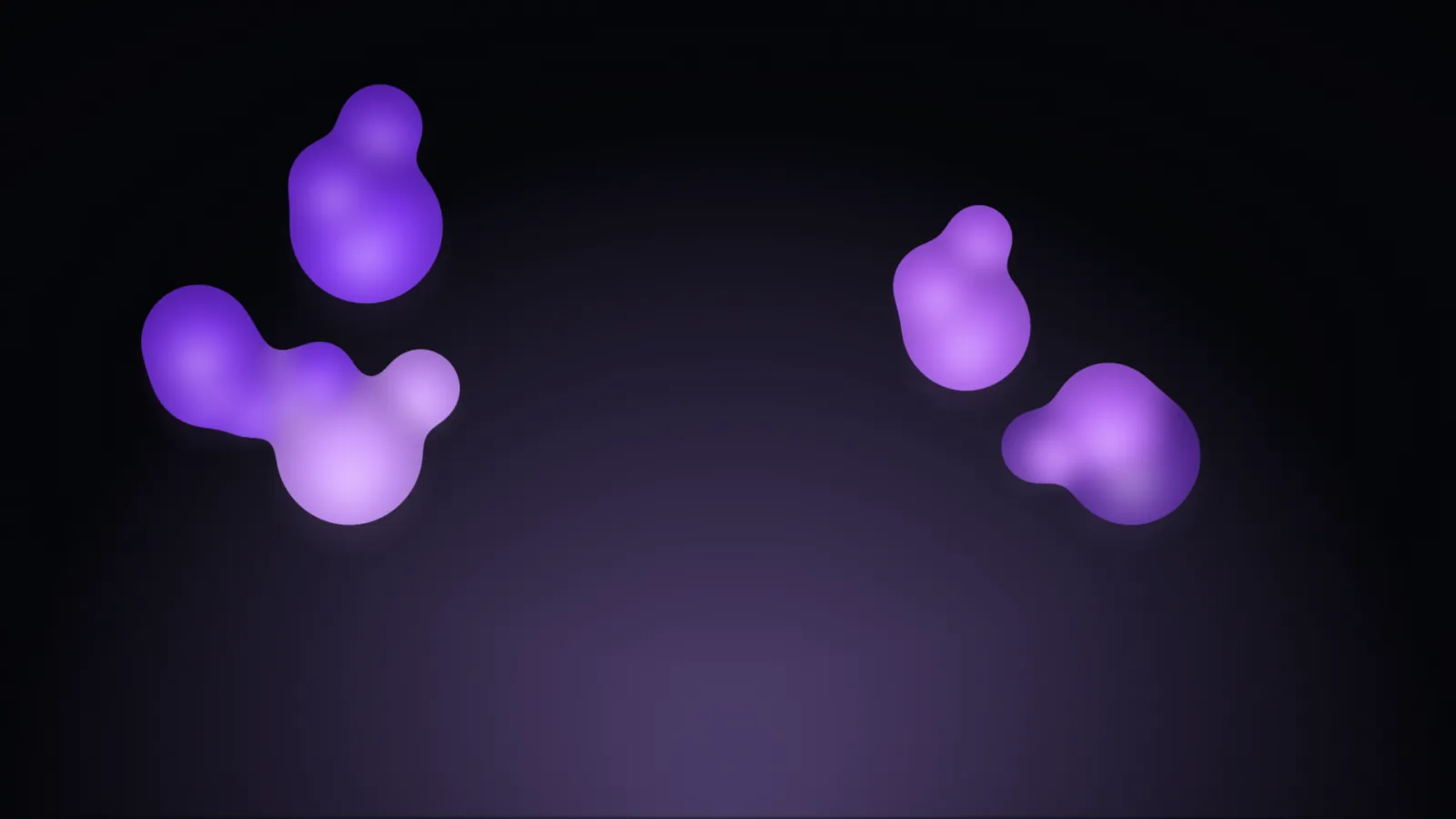
Slow, gooey blobs of colour drift and merge like the wax in an actual lava lamp — no physics engine, no metaball marching squares, just two canvases and a filter trick that turns overlapping soft-edged circles into one shape. Five palettes plus any hex pair of your own, capped at a calm 30 frames a second, with a seed that keeps two screens in step.
ClassicTwo pairs mid-merge, on the default dark ground.PurpleThe same effect, one preset over.
How the blobs merge
An SVG filter on a canvas element — blur into a colour matrix that targets alpha only — rather than a plain CSS contrast boost, which hue-shifts the seam between two differently coloured blobs. Two blobs read as one shape when close, and two shapes again when they drift apart.
If you self-host
Self-hosted, read-only container. Lava makes no outbound request at all, ever — every colour and every frame is computed in the browser.
What it wants
A palette — classic, purple, ocean, monochrome, or a custom comma-separated hex list — and a screen. Blur radius and blob scale are computed from the screen’s own shorter side, so the same URL works on a 16:9 kiosk panel or a portrait tablet.
Setup
Put Lava on a screen.
A browser is genuinely enough — the Mac app and Fully Kiosk below are conveniences, not requirements.
Any screen
nothing to install
Open the display in whatever browser the screen already has.
Go full screen: F11 on Windows and Linux, ⌃⌘F on macOS.
Or give it a browser of its own, which is what a dedicated panel wants: chrome --kiosk <url> — on macOS, open -a "Google Chrome" --args --kiosk <url>.
Turn off display sleep in the machine’s power settings and walk away.
Works on anything with a browser
Mac desktop
LivingKiosk app
Get the app and its install steps at livingkiosk.com/mac. It isn’t notarized yet, so macOS asks you to approve it once.
Menu bar → Library… and pick a display for each screen.
Configure… on any screen for its reload schedule, dim, and saved configs.
Displays are ordinary web pages, so anything that can hold one open works: a Raspberry Pi on a monitor, a retired iPad, a Fire tablet, the browser built into a TV.
Configuration
URL parameters.
Everything below, plus a live preview and a URL builder that writes the link for you, is at lava.livingkiosk.com/setup.
Parameter
Default
Meaning
palette
classic
purple, ocean, monochrome, or a custom comma-separated hex list (min. two colours).