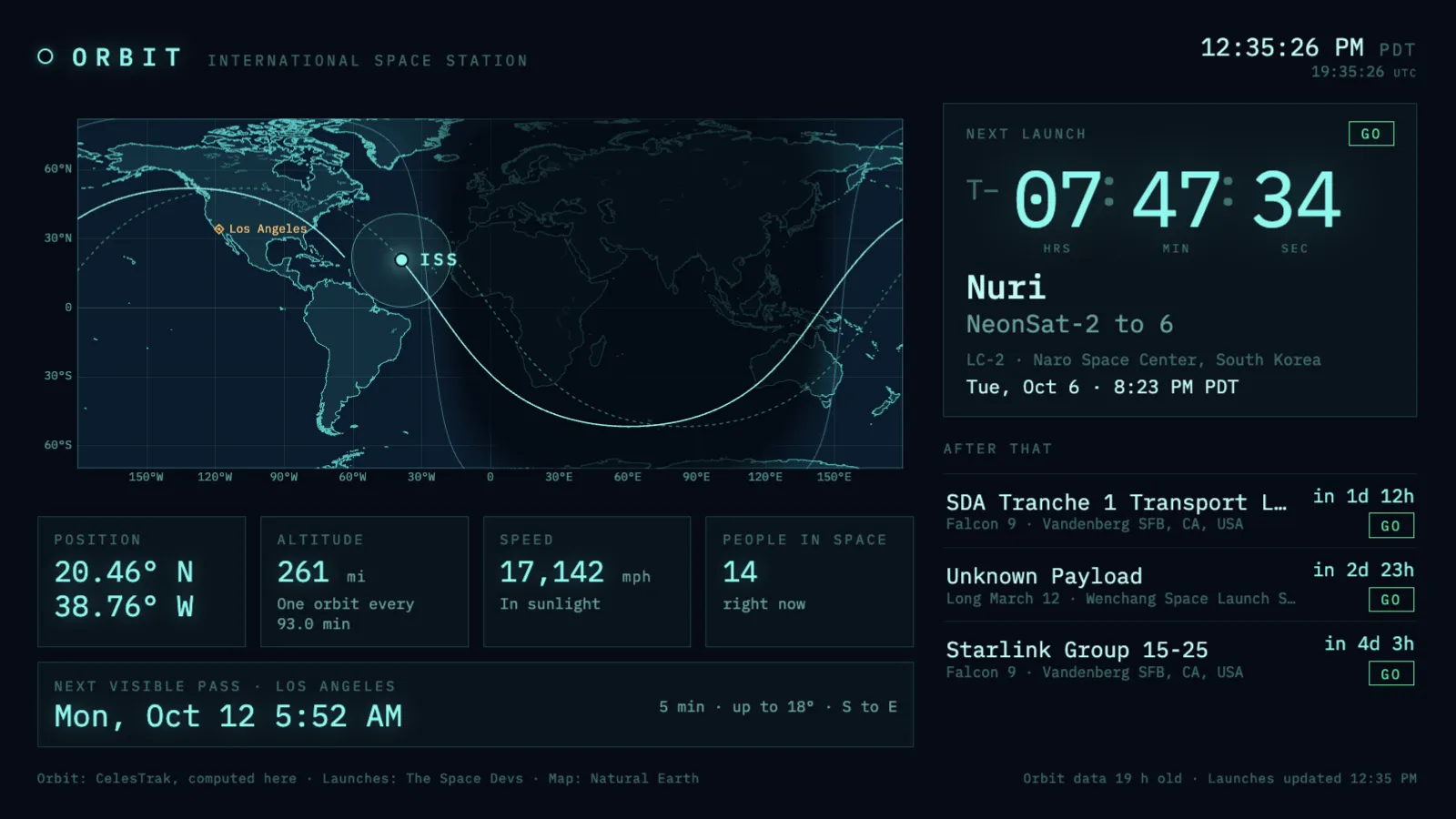
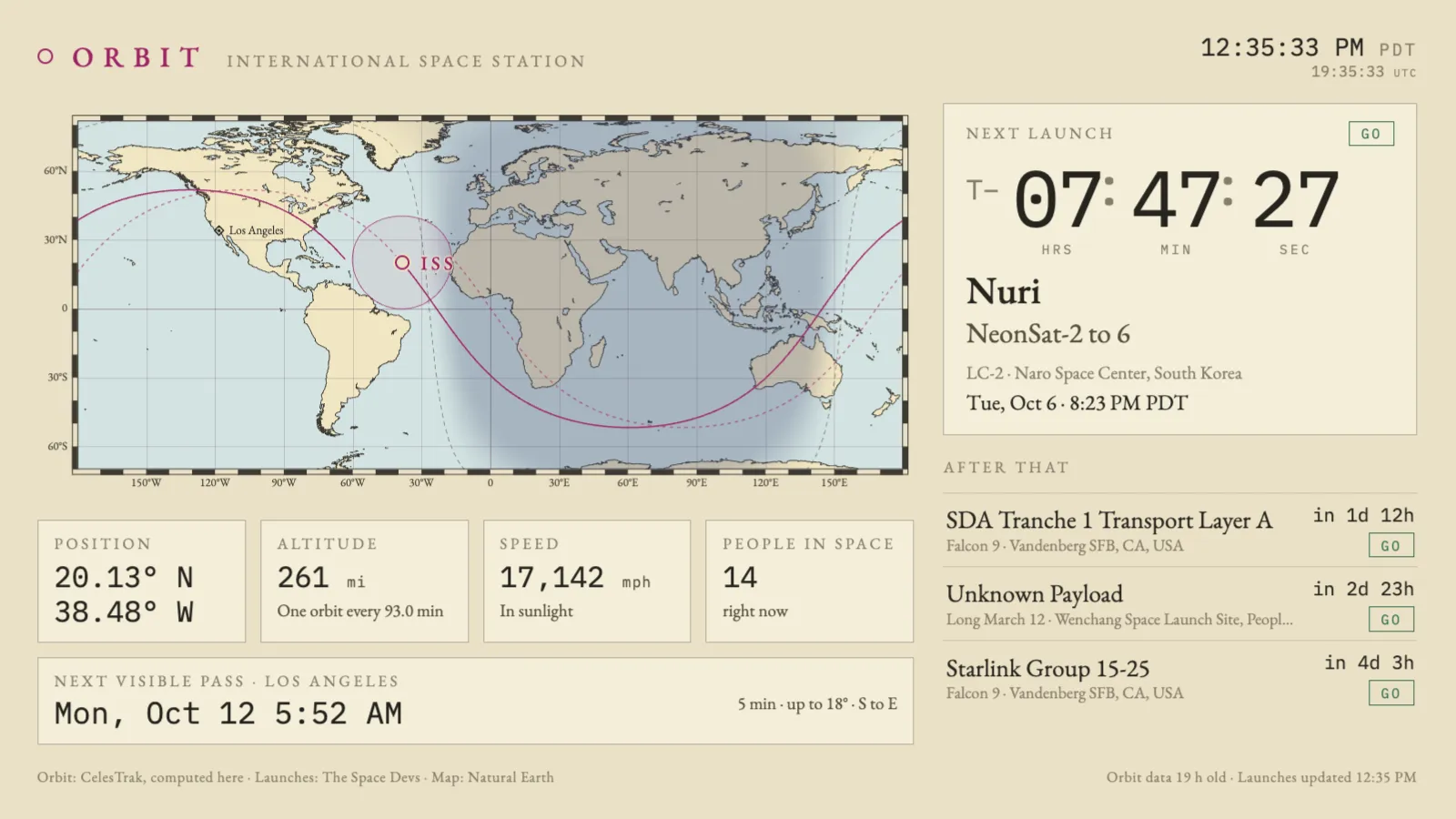
A calm mission-control wall. The International Space Station moves across a world map with the path it has flown and the path still to come, the day and night sides of the Earth, and the circle of ground it can see. Beside the map are the next rocket launches, with a big countdown for the first — and in the last ten minutes before a launch, the whole screen becomes that countdown.
ConsoleDark navy and phosphor cyan, set in monospace.ChartPaper, ink and magenta, set like a nautical chart.
Where the data comes from
Orbital elements for the station come from CelesTrak, fetched at most every six hours; the position is then worked out in the browser every second, so a dropped connection changes nothing you can see. Launches and the people in space come from The Space Devs’ Launch Library 2, on its free tier, so each screen costs about two requests an hour. The map is Natural Earth, bundled as vectors: no tiles and no map key.
If it goes quiet
Responses are cached in the browser, so a reload spends nothing, and when a source goes quiet the last good data stays on screen with its age in the footer. With no network and an empty cache the station still moves, from a bundled element set. There is a hard hourly cap on launch requests, so a reload loop or several tabs cannot exceed the free tier.
What it wants
Optionally a latitude and longitude, which adds a home marker and the next pass worth looking up for: dark sky at your place and the station in sunlight. Console or chart look, imperial or metric, and the launch panel and full-screen countdown can each be switched off.
Setup
Put Orbit on a screen.
A browser is genuinely enough — the Mac app and Fully Kiosk below are conveniences, not requirements.
Any screen
nothing to install
Open the display in whatever browser the screen already has.
Go full screen: F11 on Windows and Linux, ⌃⌘F on macOS.
Or give it a browser of its own, which is what a dedicated panel wants: chrome --kiosk <url> — on macOS, open -a "Google Chrome" --args --kiosk <url>.
Turn off display sleep in the machine’s power settings and walk away.
Works on anything with a browser
Mac desktop
LivingKiosk app
Get the app and its install steps at livingkiosk.com/mac. It isn’t notarized yet, so macOS asks you to approve it once.
Menu bar → Library… and pick a display for each screen.
Configure… on any screen for its reload schedule, dim, and saved configs.
Displays are ordinary web pages, so anything that can hold one open works: a Raspberry Pi on a monitor, a retired iPad, a Fire tablet, the browser built into a TV.
Configuration
URL parameters.
Everything below, plus a live preview and a URL builder that writes the link for you, is at orbit.livingkiosk.com/setup.
Parameter
Default
Meaning
theme
console
chart for paper, ink and magenta.
lat, lon
—
Home marker and next pass. Both or neither.
place
—
Name beside the home marker.
tz
the screen’s own
An IANA zone for every time shown. Unknown names are ignored.
clock
auto
12 or 24.
units
imperial
metric for altitude and speed.
track
on
off hides the orbit track, one orbit back (dotted) and one ahead.
launches
on
off hides the launch panel and makes no launch-schedule requests, so no take-over either.
takeover
on
off stops the full-screen countdown ten minutes either side of a launch.
dim
0
Black scrim over everything, 0 to 0.8 (fleet-wide convention).
Orbit is open source under the MIT licence. Run it yourself with one command. The source opens to the public soon.