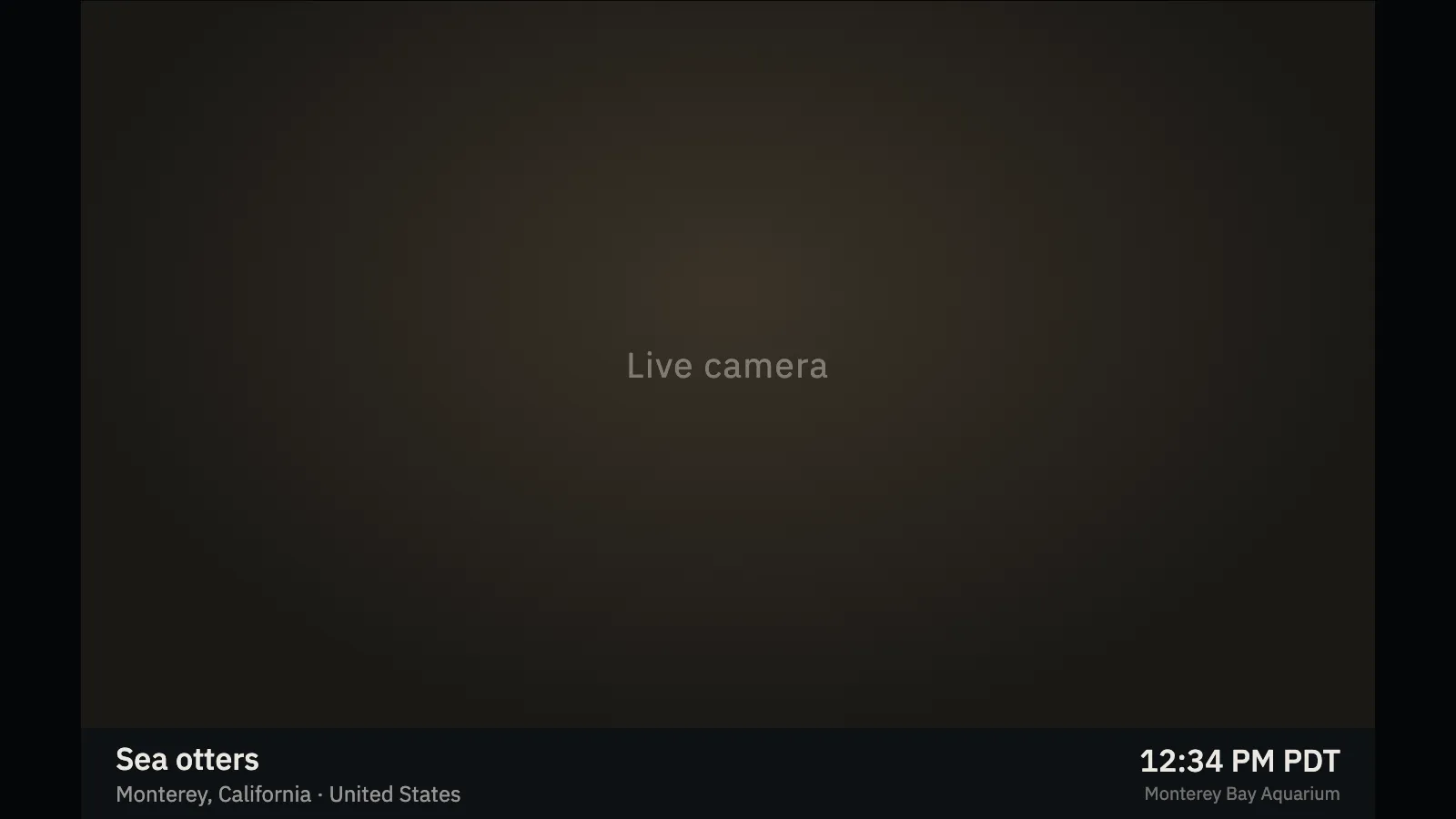
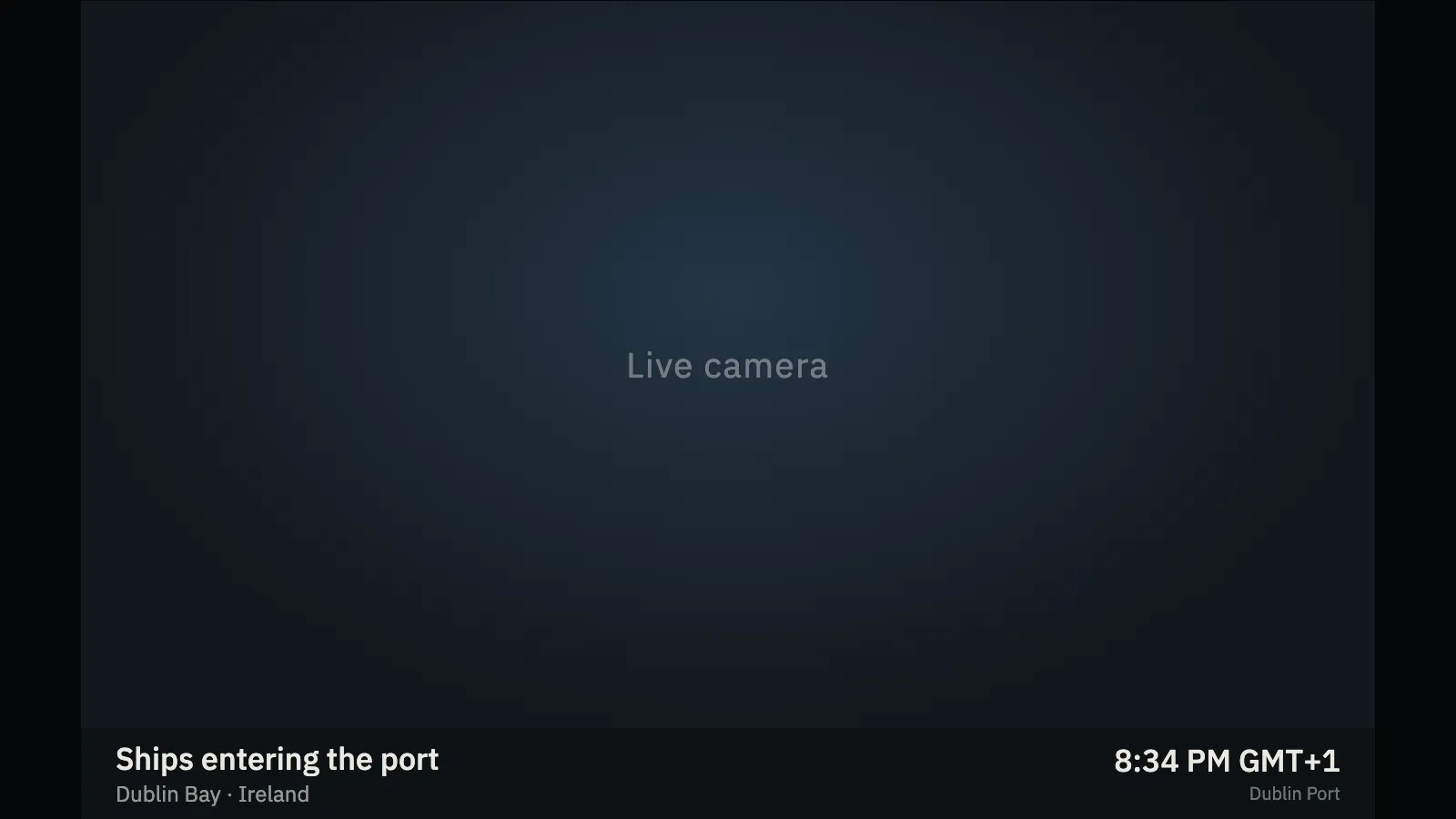
A channel that is always somewhere else. Point a spare screen at it and you are looking at a live camera — sea otters in Monterey, bears at Brooks Falls, a harbour in Dublin, the aurora over Iceland — held for a few minutes, then on to the next. A small caption under the picture says what it is, where, and what time it is there.
AnimalsThe caption band for a sea-otter camera, over a placeholder in place of live video.PlacesThe same caption band for a harbour camera, the local time and owner at the right.
Where the picture comes from
Official live streams, published on purpose by their owners — an aquarium, a national park, a port authority, a university, an observatory — on the owner’s own YouTube channel and shown with YouTube’s embedded player. Nothing is scraped, no private or unsecured camera is used, and no frames or recordings are copied. Every camera and its owner is listed on the setup page, and the stills here are mock frames of the caption design, not live video.
It looks at the sun, not just the clock
The dial is curated: 38 cameras across four topics — animals, nature, places and sky. A small solar calculation skips a camera that is dark where it stands, and the aurora cameras are used only once the sky there is properly dark. A camera that has not started in 20 seconds is skipped and benched for six hours; there is no error screen.
What it wants
A connection that can reach YouTube. Cameras always start muted, because browsers allow nothing else; with sound on, one tap unmutes. Hold time, topics, captions and a shuffle seed are in the URL. The project sets no cookies of its own, and YouTube’s player is subject to YouTube’s own terms and privacy policy.
Setup
Put Elsewhere on a screen.
A browser is genuinely enough — the Mac app and Fully Kiosk below are conveniences, not requirements.
Any screen
nothing to install
Open the display in whatever browser the screen already has.
Go full screen: F11 on Windows and Linux, ⌃⌘F on macOS.
Or give it a browser of its own, which is what a dedicated panel wants: chrome --kiosk <url> — on macOS, open -a "Google Chrome" --args --kiosk <url>.
Turn off display sleep in the machine’s power settings and walk away.
Works on anything with a browser
Mac desktop
LivingKiosk app
Get the app and its install steps at livingkiosk.com/mac. It isn’t notarized yet, so macOS asks you to approve it once.
Menu bar → Library… and pick a display for each screen.
Configure… on any screen for its reload schedule, dim, and saved configs.
Displays are ordinary web pages, so anything that can hold one open works: a Raspberry Pi on a monitor, a retired iPad, a Fire tablet, the browser built into a TV.
Configuration
URL parameters.
Everything below, plus a live preview and a URL builder that writes the link for you, is at elsewhere.livingkiosk.com/setup.
Parameter
Default
Meaning
hold
4
Minutes each camera is held once it is playing (1–60). Clamped, not rejected.
topics
all four
Comma-separated: animals, nature, places, sky. Unknown words are ignored.
captions
on
off gives the picture the whole height.
sound
0
1 lets one tap or key press unmute the current camera and every one after it. Cameras always start muted.
shuffle
—
Pins the running order, so screens with the same seed hop in step.
dim
0
Darkens the picture and caption with a brightness filter, 0 to 0.8, rather than an overlay in front of the player.
Elsewhere is open source under the MIT licence. Run it yourself with one command. The source opens to the public soon.